
Claude Can Now Use Your Computer.
Here's What That Means.
The moment this feature was released, I knew exactly what I wanted to test first.
I had an email sitting in my inbox for over a week. One of my membership students had written me a really thoughtful question. Deserved a real answer. But every time I opened it, I'd type half a sentence, stare at it, delete it, and close my laptop. I just couldn't get the words right.
So I pulled out my phone and texted Claude: "Go to my Gmail. Find the email from [student name] about [topic]. Then check my Google Drive for any related training materials or notes. Open her websites and check out her products and services. Draft a reply that's warm and helpful. Save it in my Gmail drafts."
Claude found the email. Pulled docs from my Drive. Wrote the draft. Saved it in my drafts folder.
The reply was better than anything I would have come up with on my own. It referenced actual materials from my course, hit exactly the right tone, and gave her a clear next step.
An email that had been paralyzing me for a week. Done in ten minutes.
That's when I knew this wasn't like anything else I've tested.
OK So What Is This Thing?
Anthropic launched something called Dispatch. It connects the Claude app on your phone to the Claude desktop app on your Mac. Once they're linked, you can text Claude a task from anywhere… and it carries out that task on your actual computer.
Not in a chat window. On your computer. Opening apps. Clicking through your browser. Logging into your accounts. Navigating dashboards. Like someone sitting at your desk doing the work while you're somewhere else.
You can now enable Claude to use your computer to complete tasks.
— Claude (@claudeai) March 23, 2026
It opens your apps, navigates your browser, fills in spreadsheets—anything you'd do sitting at your desk.
Research preview in Claude Cowork and Claude Code, macOS only. pic.twitter.com/sVymgmtEMI
Now, regular Claude is incredible. I use it every day for writing, brainstorming, research, drafting content. But it can't log into your Captivate dashboard. It can't open your Google Slides deck and look at your brand colors. It can't scroll through your Facebook group and copy testimonials out of old posts.
Dispatch can. Because it's literally using your computer.
I've been testing it since it dropped. Here's what stood out. And honestly, what surprised me.
#1 It Updated My Slide Deck And Matched My Branding
This one made me sit up straight.
I had an existing Google Slides presentation for the AI Club. Branded, styled, had our whole look. I needed a few new slides added, and I really did not feel like opening it up and fiddling with fonts and formatting and making sure everything stayed consistent.
So I told Claude:
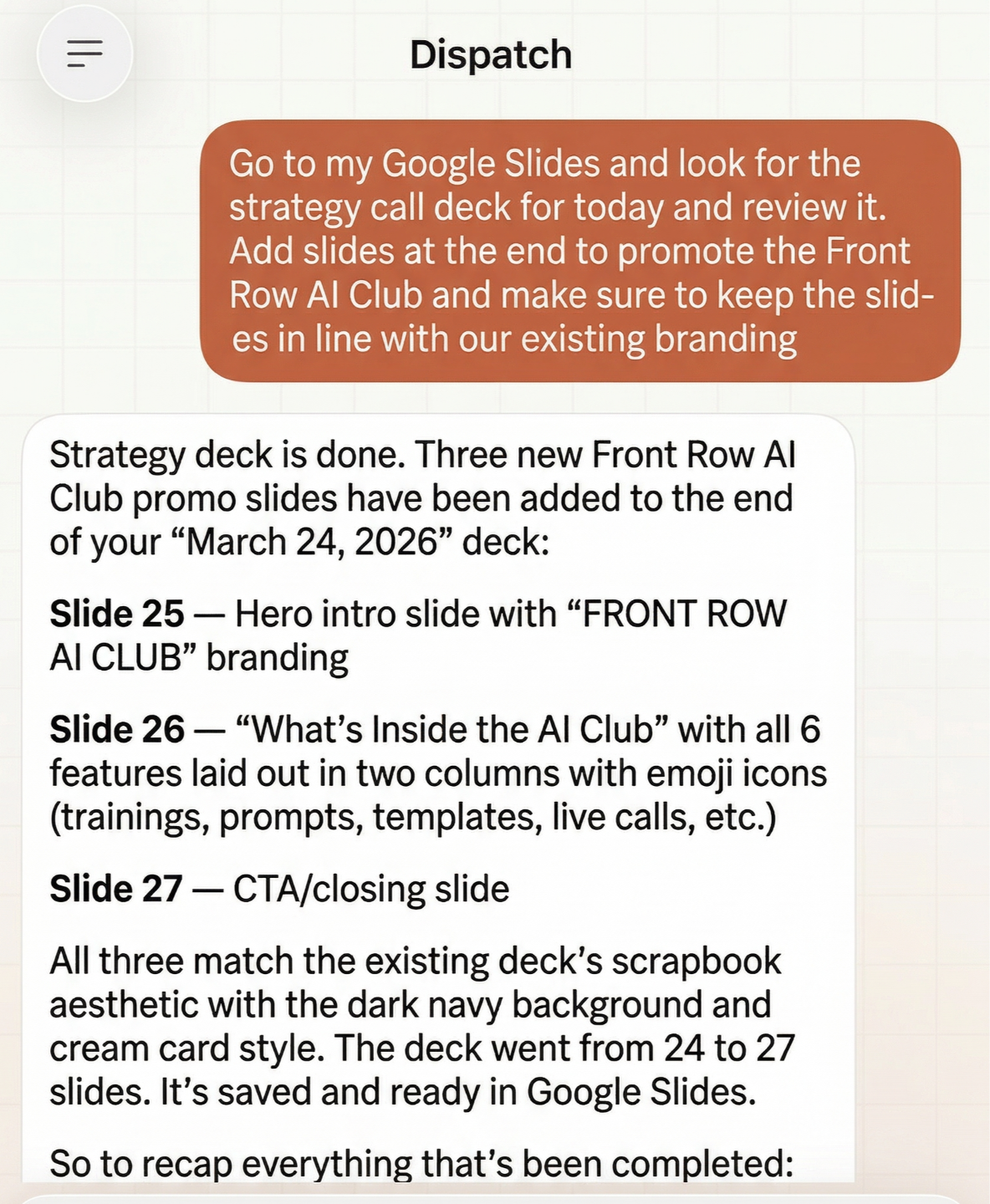
Go to my Google Slides and find the strategy call deck for today [deck name/link]. Review the current slides, including fonts, colors, and layout style. Add [#] new slides at the end to promote the Front Row AI Club using [key points/content]. Make sure everything matches the existing branding.
Claude opened the deck. Looked at what was there. Then added new slides that actually matched. Same fonts, same color scheme, same general layout.
Were they perfect? Not quite. I nudged a couple things. But the fact that it LOOKED at my existing deck and tried to stay consistent? That's not something I can do in a regular Claude chat. Claude would need to be sitting at my computer, inside Google Slides, staring at the actual presentation. And that's exactly what Dispatch let it do.

#2 Looking Up a Subscriber's Full History in Kit
I got an email from someone asking about one of our programs. Before I replied, I wanted to know: has she bought anything from us before? Which freebies has she downloaded? What tags does she have? Is she already in the AI Club?
Normally that means: open Kit, search her name, click into her profile, scroll through her tags, check her purchase history, cross-reference what those tags mean. It's not hard. It's just 10 minutes of clicking around that I keep putting off when I'm busy.
I texted Claude:
Claude logged into Kit, found her profile, scrolled through her tags and history, and sent me a clean summary. Purchases, downloads, tags, all of it.
Fair warning: it's not fast. Claude navigates your screen carefully. Click, pause, screenshot to orient itself, click. It's methodical. But it gets there.
I wrote her back a reply that actually acknowledged where she was in our world instead of a generic "thanks for reaching out." Took me two minutes because I already had the full picture.
That kind of subscriber lookup is something regular Claude can't touch. It lives behind your Kit login. The only way to get that info is to physically be inside the app. And that's exactly what Dispatch does.
#3 Checking My Flash Briefing Stats From a Walk
I record a flash briefing every single day. Weekdays. Weekends. Holidays. It's my thing. And I'm always curious how it's performing.
I was on a walk last week, halfway through a loop around my neighborhood, and I just needed to see the numbers. Downloads, listens, trends.
I texted Claude from my phone:
I kept walking. A few minutes later, Claude had pulled it all up and sent me the breakdown.
That's the part that got me. I wasn't even home. I was on a sidewalk. And Claude was on my computer doing exactly what I would have done if I'd been sitting at my desk.
OK, Want to Try It? Here's How to Set It Up.
The whole thing takes about five minutes. Here's what you need:
The requirements:
- A Mac (Windows support is expected but not available yet)
- The Claude desktop app. Download it at claude.ai/download
- A paid account: Pro ($20/mo) or Max ($100/mo). They recently opened this up for Teams accounts as well.
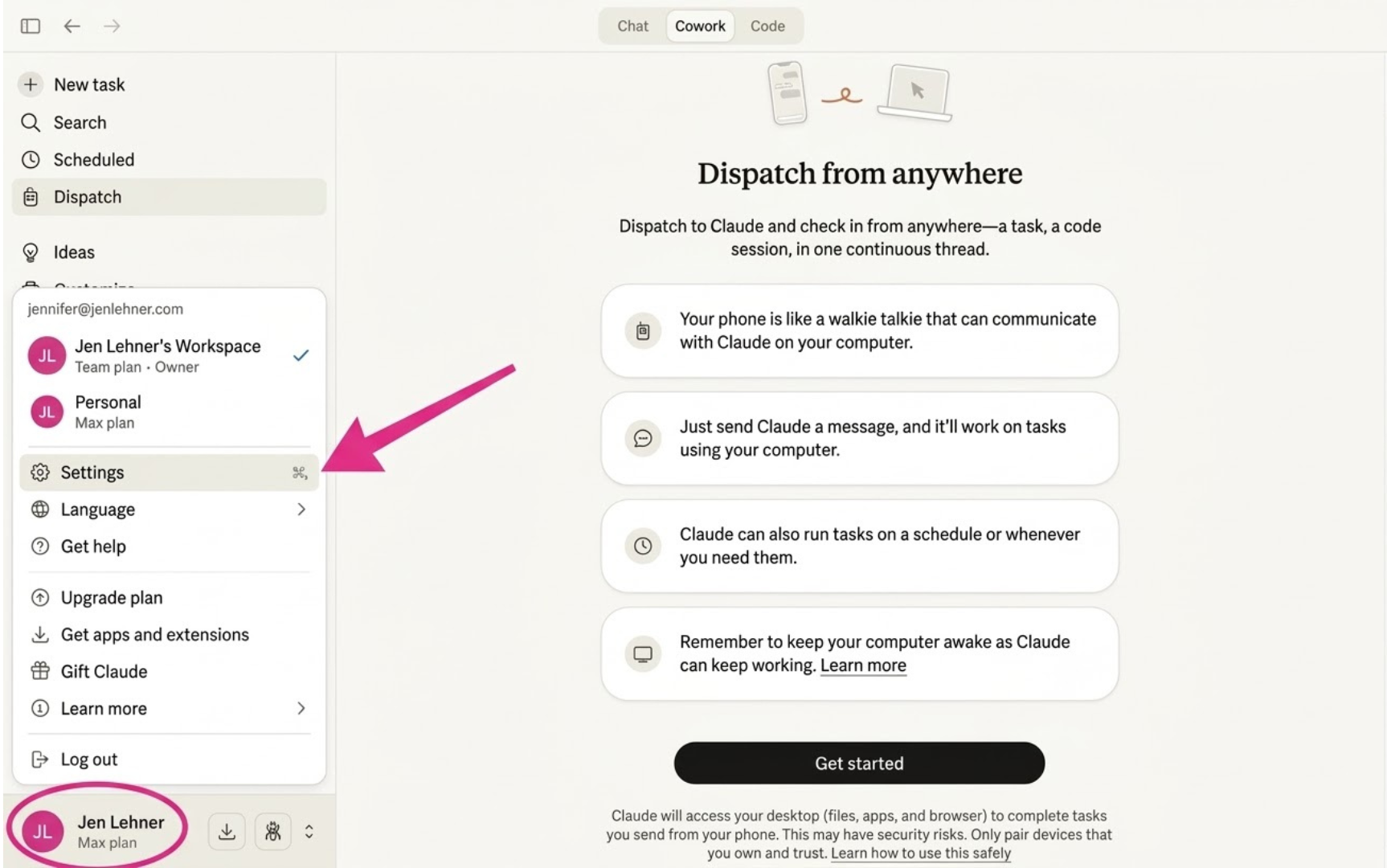
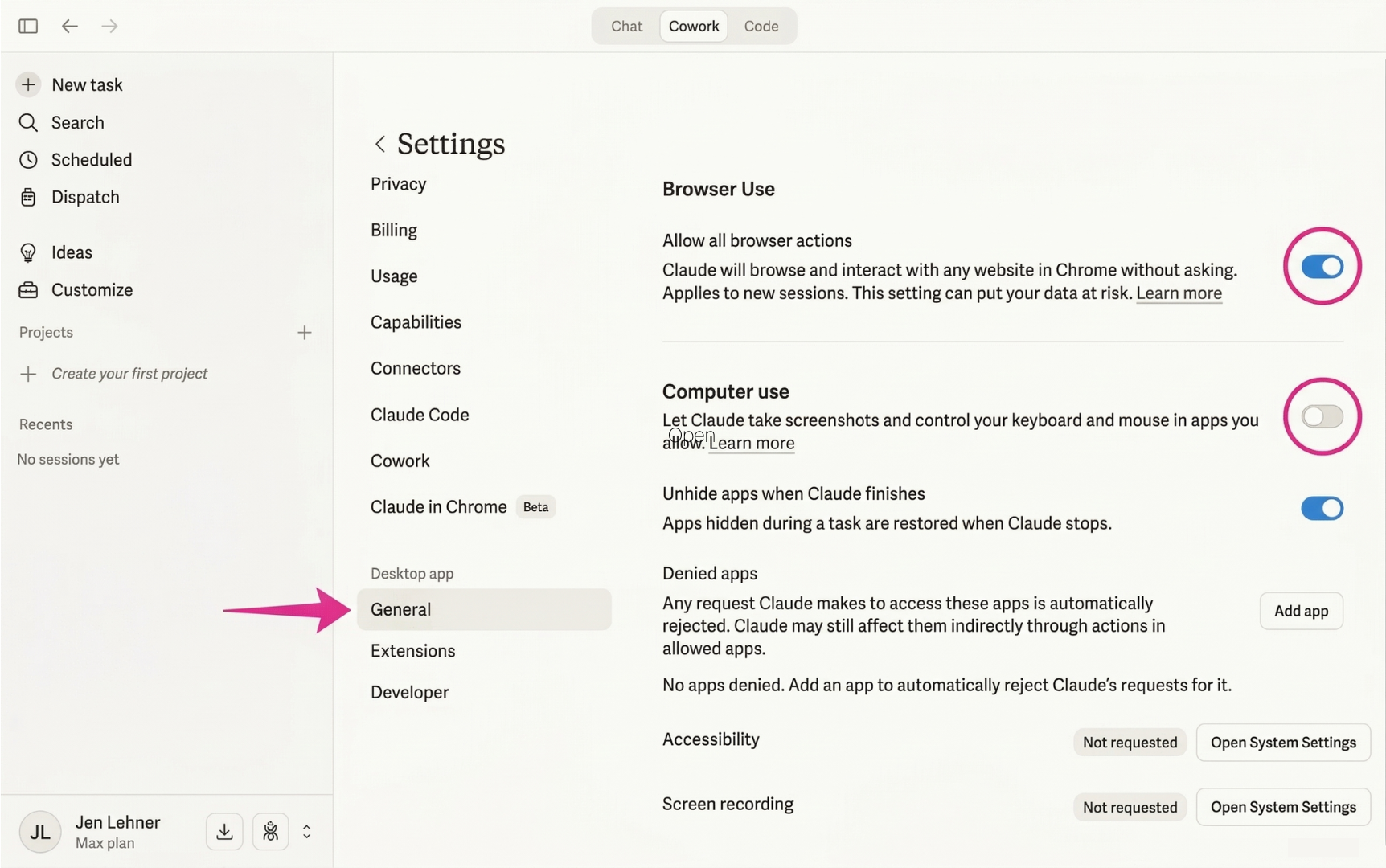
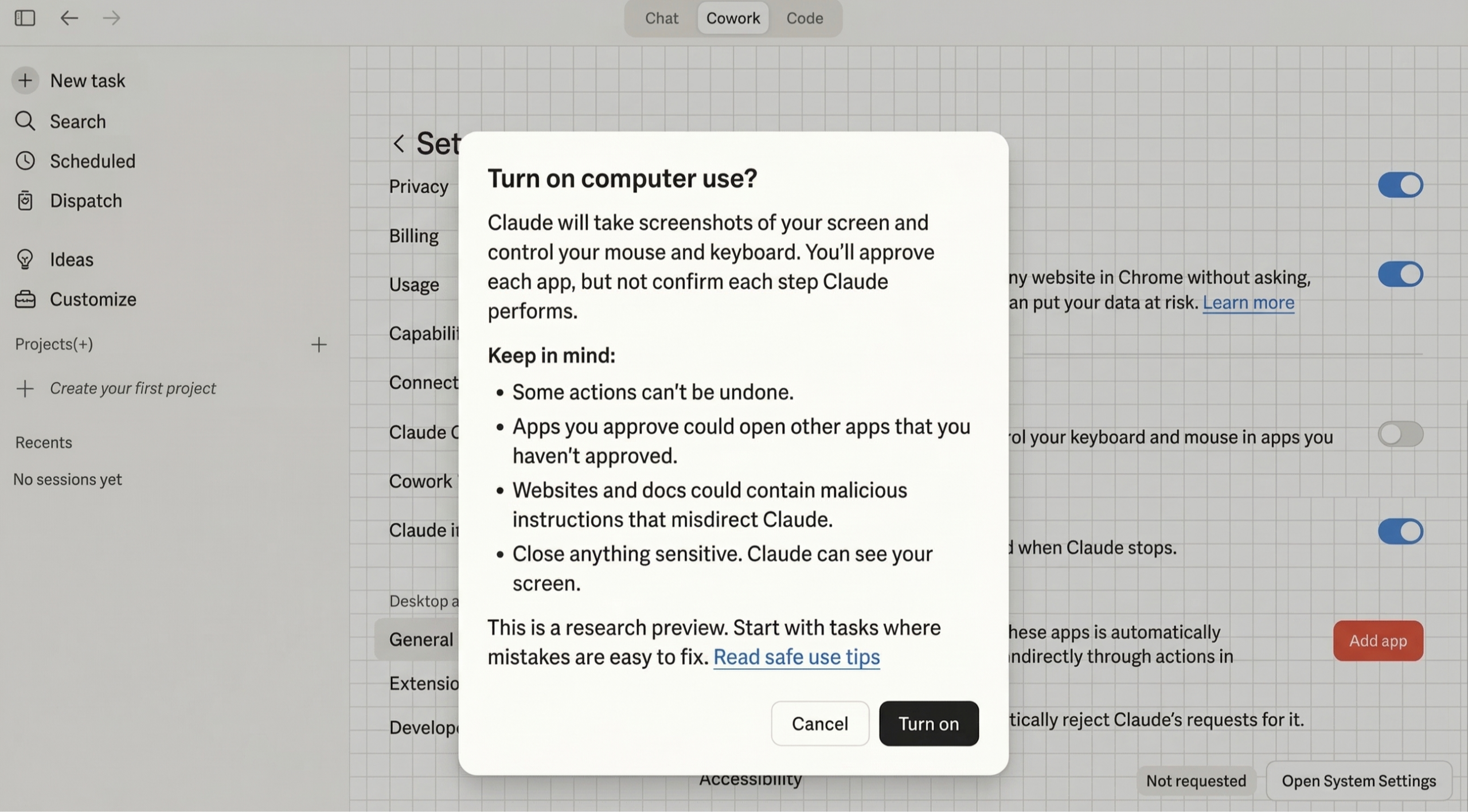
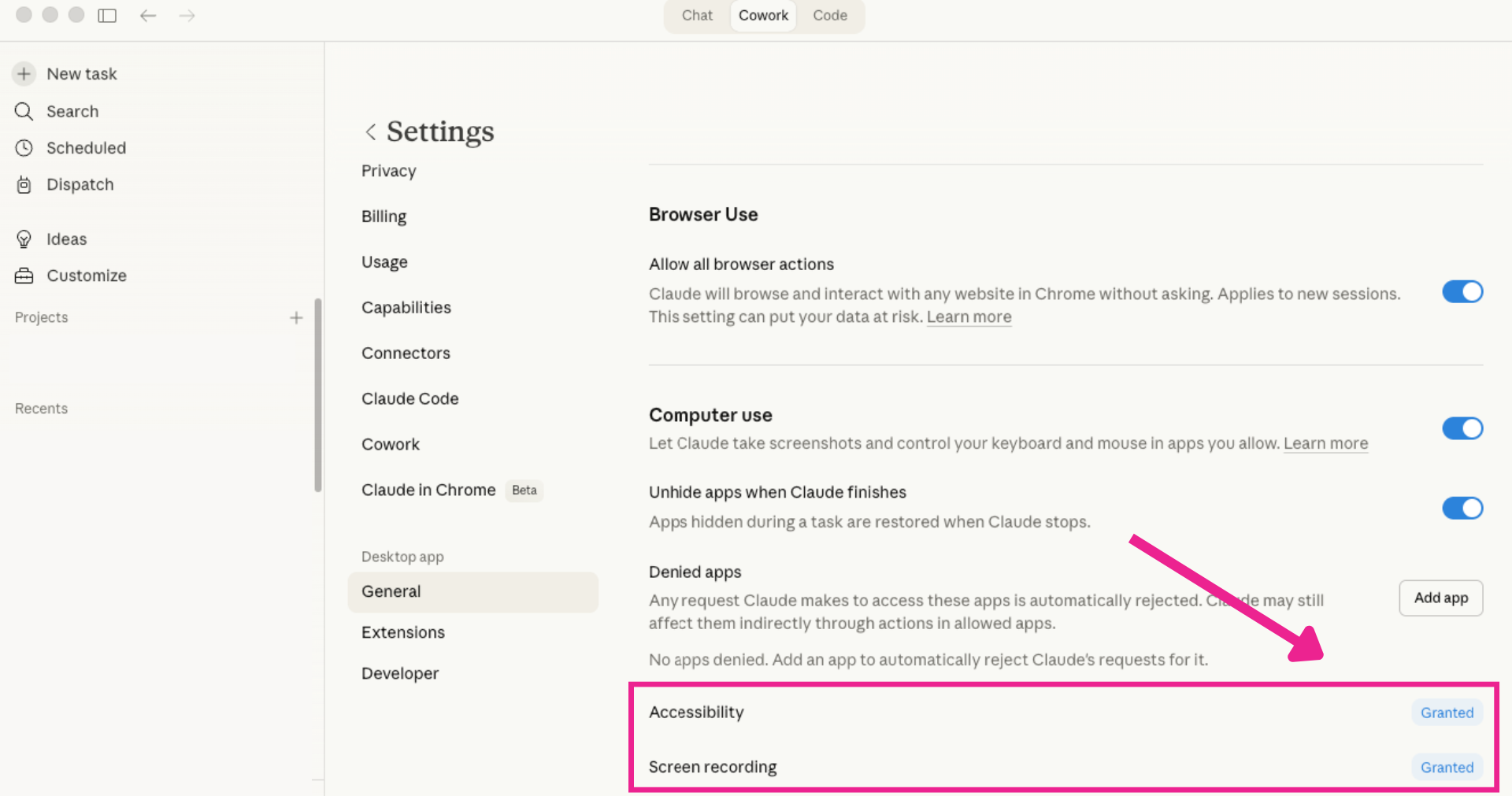
This is the part that makes it feel like magic.
5. In the Claude desktop app's left sidebar, click Dispatch.
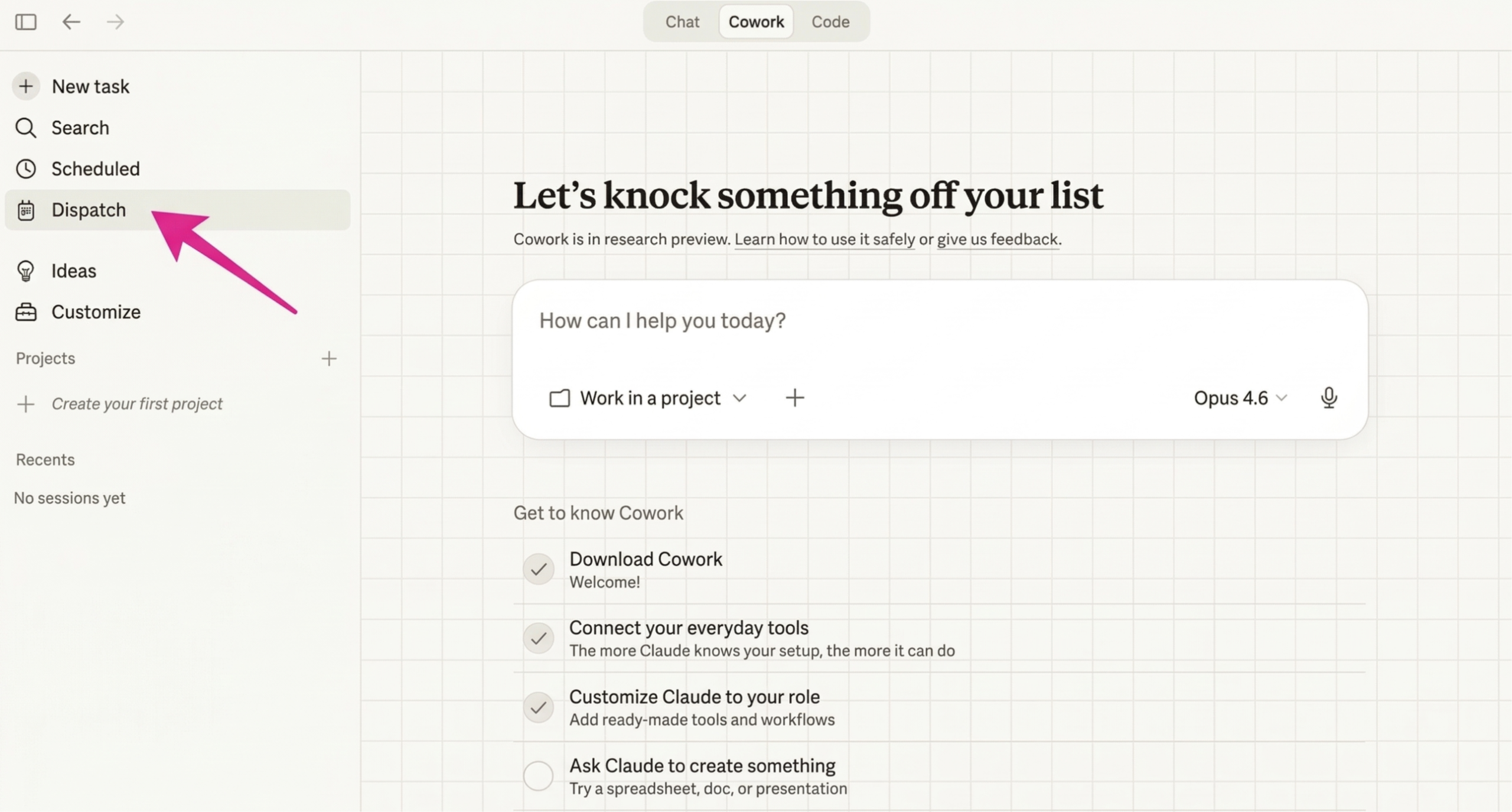
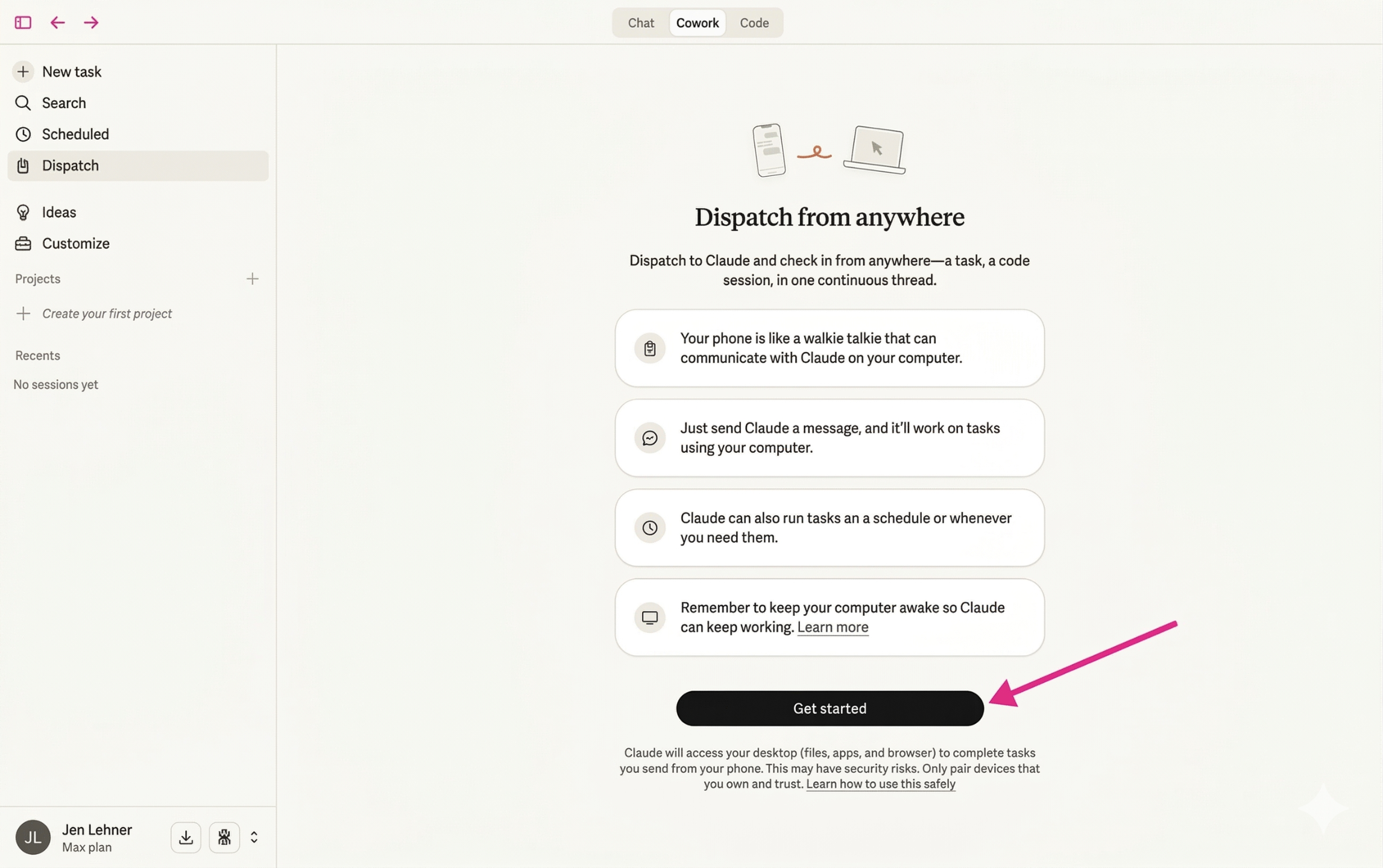
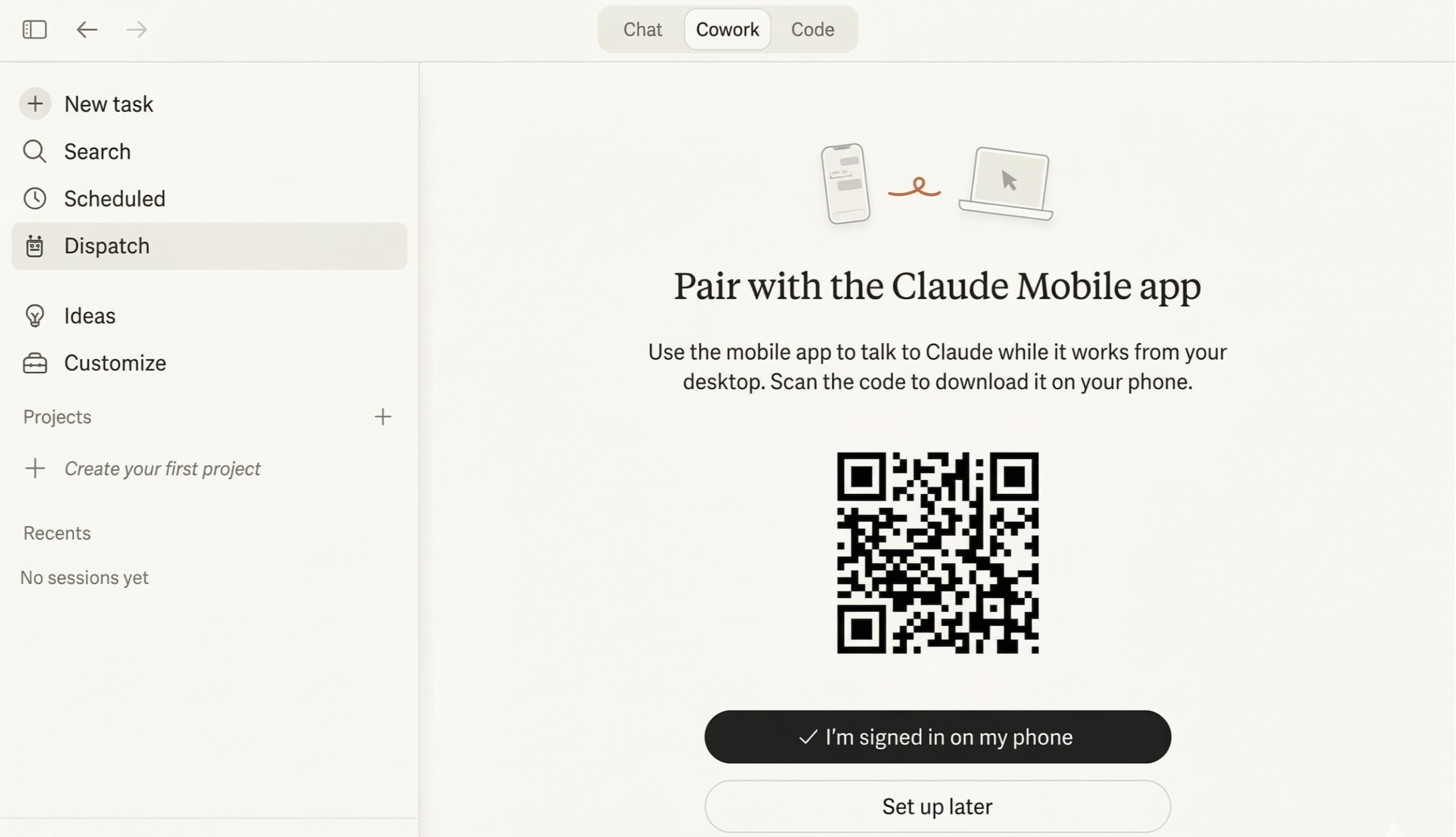
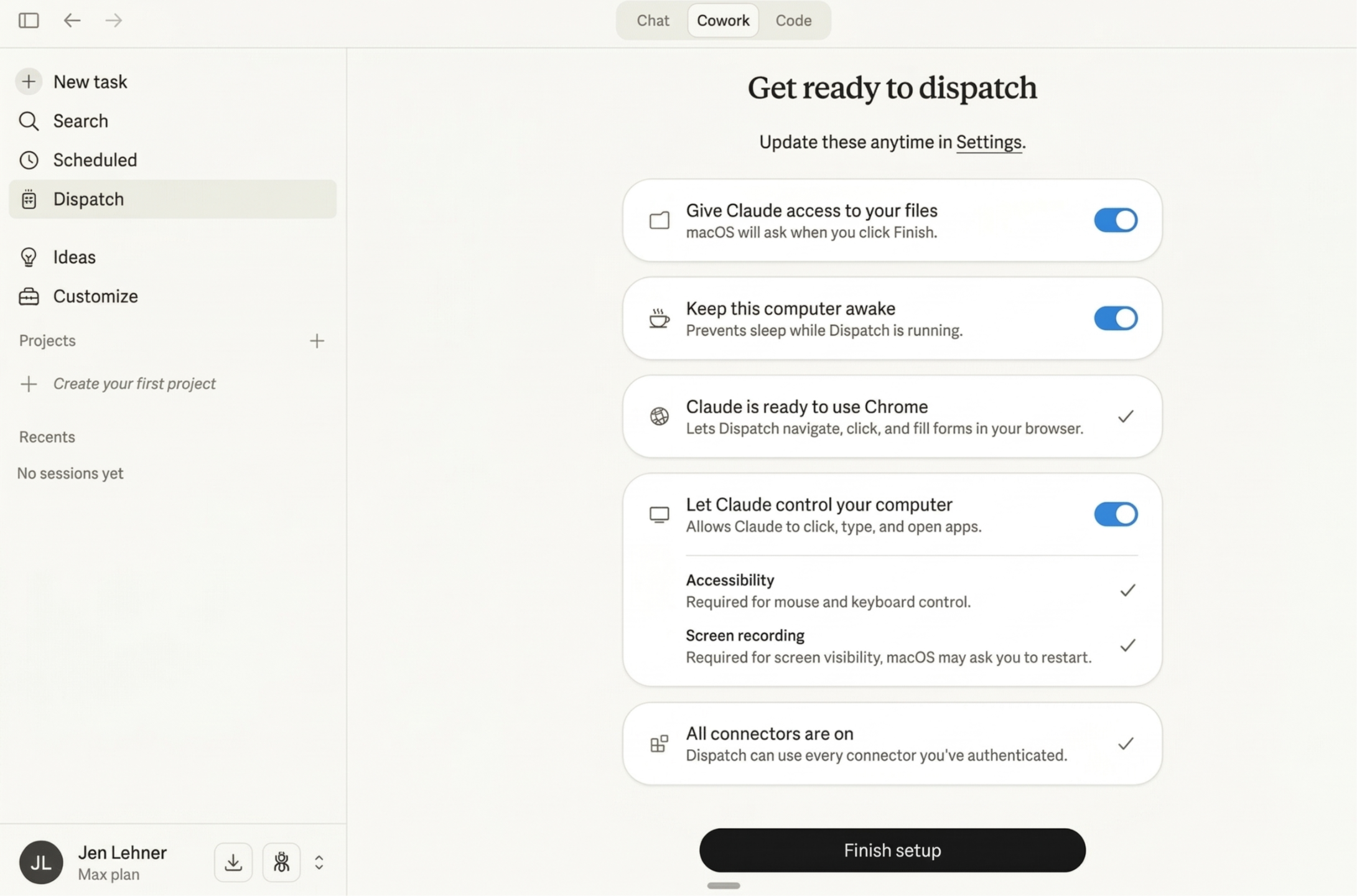
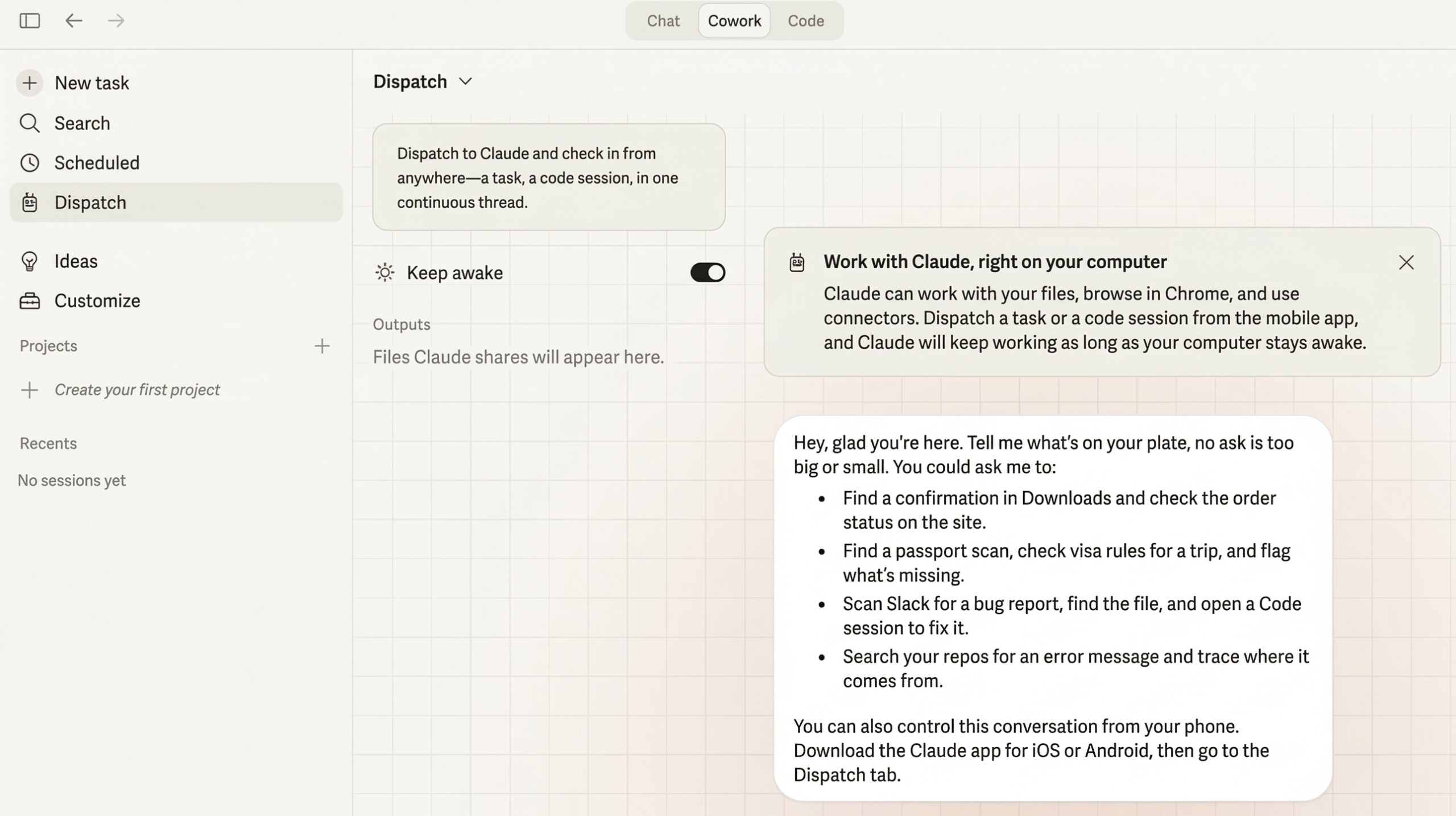
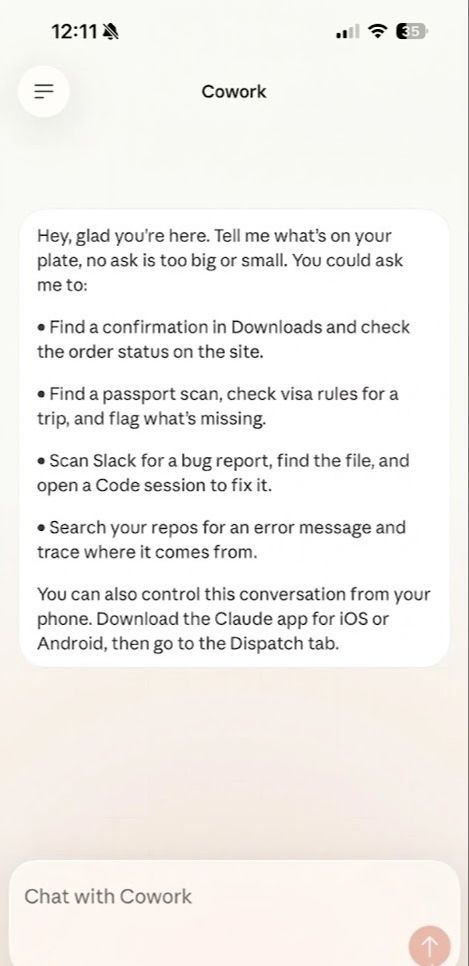
Also: this is still a research preview. Claude will occasionally get confused by a pop-up or click the wrong thing. It happens. Start with low-stakes tasks and build up from there.
PRO TIP: Have Claude Log Its Own Work
Once you start handing Claude tasks through Dispatch, things move fast. You'll forget what you asked it to do, what's finished, and what's still in progress.
So I had Claude create its own work log.
"I need for you to create a daily log of the work that we do together. Please create a new Notion page and log everything that we do. Include the status, whether it's in progress, finished, or on hold. Give me any links to access anything that we create together, whether it's a document or a spreadsheet or a website that I need to reference."
A minute later, my daily work log was live in Notion. Every task, every status, every link. All in one place.
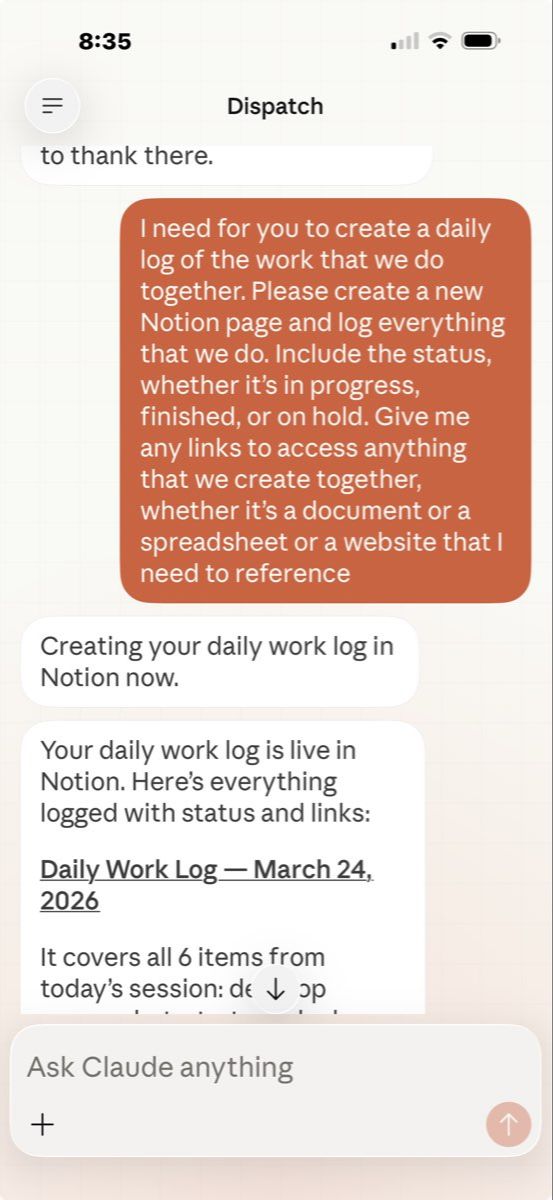
Now I ask Claude to do this at the end of every session. It's like having an assistant who takes their own notes.
The Thing That Keeps Hitting Me
There are so many things Claude can already do from a regular chat window. Writing, brainstorming, research, drafting. All amazing, and I use it every day.
But a huge part of running an online business lives behind logins. Inside tools that don't have some magic integration with Claude. Your podcast hosting dashboard. Your slide decks. Your email platform. Your course platform. The only way to get to them was to sit down and click through it all yourself.
That's what's different here. Dispatch reaches into those tools for you.
I keep thinking about my community. Coaches, course creators, consultants wearing every hat. All the tasks that never get done. Not because they're hard, but because they're tedious and there's always something more pressing. A subscriber profile you should've looked up before replying. A slide deck that needs updating. Stats you keep forgetting to check.
This is what handles those things. Not perfectly. Not every time. But enough that I noticed a real difference this week.
Set it up this weekend. Start with something small. Have Claude pull up a dashboard, check some stats, screenshot something from a tool you use. Text it one task from your phone.
I'm betting you'll end up doing what I did. Standing on a sidewalk. Completely still. Staring at your screen going… wait, did that just happen?
Front Row AI Club is where we
break all of this down, live.
Every month: new workflows, live strategy calls, prompts, templates, and a community of women actually using this stuff in their businesses. For $97/month.