Claude Can Now Use Your Computer.
Here's What That Means.
I record a flash briefing every single day. Weekdays. Weekends. Holidays. It's my thing.
Last Tuesday I was on a walk and I started wondering how the briefing was performing. Downloads, listens, trends. But I wasn't at my computer. I was halfway through a loop around my neighborhood.
So I pulled out my phone, texted Claude, and said: "Go to my computer. Open Chrome. Pull up my flash briefing analytics. Give me the numbers for the last 7 days."
I kept walking.
By the time I got home, Claude had done it. The numbers were sitting right there on my phone.
I stood in my kitchen staring at the screen for a good 30 seconds.
I just got my flash briefing stats pulled up... from a walk... by texting my phone.
You can now enable Claude to use your computer to complete tasks.
— Claude (@claudeai) March 23, 2026
It opens your apps, navigates your browser, fills in spreadsheets—anything you'd do sitting at your desk.
Research preview in Claude Cowork and Claude Code, macOS only. pic.twitter.com/sVymgmtEMI
So What Is This, Exactly?
Claude released something called Computer Use inside a feature called Dispatch.
Short version: Claude can now click on your actual computer. Open apps. Navigate your browser. Fill in spreadsheets. Move files around. Use your software. All while you're somewhere else.
You text it from your phone. It does the work on your Mac. You come back to finished work.
This is not some future prediction. This is happening right now. I've been testing it and I am... honestly a little spooked by how well it works.
Let me show you what I mean.
What I've Actually Been Doing With It
The moment this feature dropped, I was on it. I've been throwing tasks at it nonstop since day one. Some worked perfectly. Some flopped. But four of them made me stop and go, "Wait. This just saved me an HOUR."
These are all real tasks I actually do in my business. If you're a coach, course creator, or running any kind of online business with a small team (or no team), these are for you.
#1 Use Case: Podcast Guest Prep (While I'm on a Walk)
I record interviews. If you run a podcast, you know the drill: you've got a guest coming on tomorrow and you haven't researched them yet.
I texted Claude from my phone while walking:
I got home 40 minutes later. Claude had opened Chrome, visited her LinkedIn profile, scrolled through her website, found two recent podcast interviews, and created a Google Doc waiting for me.
The questions were GOOD. Not generic "tell me about your journey" stuff. Specific questions based on things she'd actually said publicly.
I used to spend 45 minutes doing this manually. Sometimes I'd skip it and wing it. We all know how those episodes turn out.
#2 Use Case: Monday Morning Inbox Triage
This one changed my mornings.
I used to start every Monday sitting at my desk for 45 minutes, scrolling through emails, trying to figure out what's urgent and what can wait.
Now I text Claude before I even pour my coffee:
By the time I sit down, there's a document waiting for me. Organized. Summarized. I know exactly what needs my attention FIRST.
#3 Use Case: Competitor Research That Would Have Taken Me All Afternoon
I was curious what a competitor was doing with their latest launch. Pricing, positioning, the whole thing.
I texted Claude:
Look. I could have done this myself. But it would have taken me at least an hour of clicking around, copying and pasting, taking screenshots, and losing focus halfway through because I started doom-scrolling their feed.
Claude did it! The summary was clear and organized. It even noted where their positioning overlapped with mine and where it didn't. I made two changes to my own sales page that afternoon because of what Claude found.
#4 Use Case: Drafting a Reply When My Brain Won't Cooperate
Somebody emailed me two weeks ago about a potential collaboration. Good email. Deserved a good reply. And I kept opening it, staring at it, typing half a sentence, deleting it, and closing my laptop.
It's not that I didn't want to respond. I just couldn't get the words right. There was too much context I needed to pull together and my brain kept locking up every time I tried.
I texted Claude:
Claude found the email. Pulled up my webinar calendar doc. Found a collab proposal from last year. Found my post-event notes from the last joint workshop I did.
Then it wrote a draft and saved it right in my Gmail drafts folder. Ready for me to review and hit send.
The draft referenced my actual availability, mentioned what worked well in my last collab, and even suggested a format based on my notes. I changed maybe two sentences and sent it.
Two weeks of staring at that email. Claude unjammed my brain in about ten minutes while I was making dinner.
OK, Want to Try It? Here's How to Set It Up.
It takes about 10 minutes. I was surprised how easy it was.
What you need:
- Mac only right now. (Windows is coming — stay tuned.)
- Download the desktop app at claude.ai/download
- Use a personal account, not a business one.
- Upgrade to Pro ($20/mo) or Max ($100/mo). Worth every penny for this.
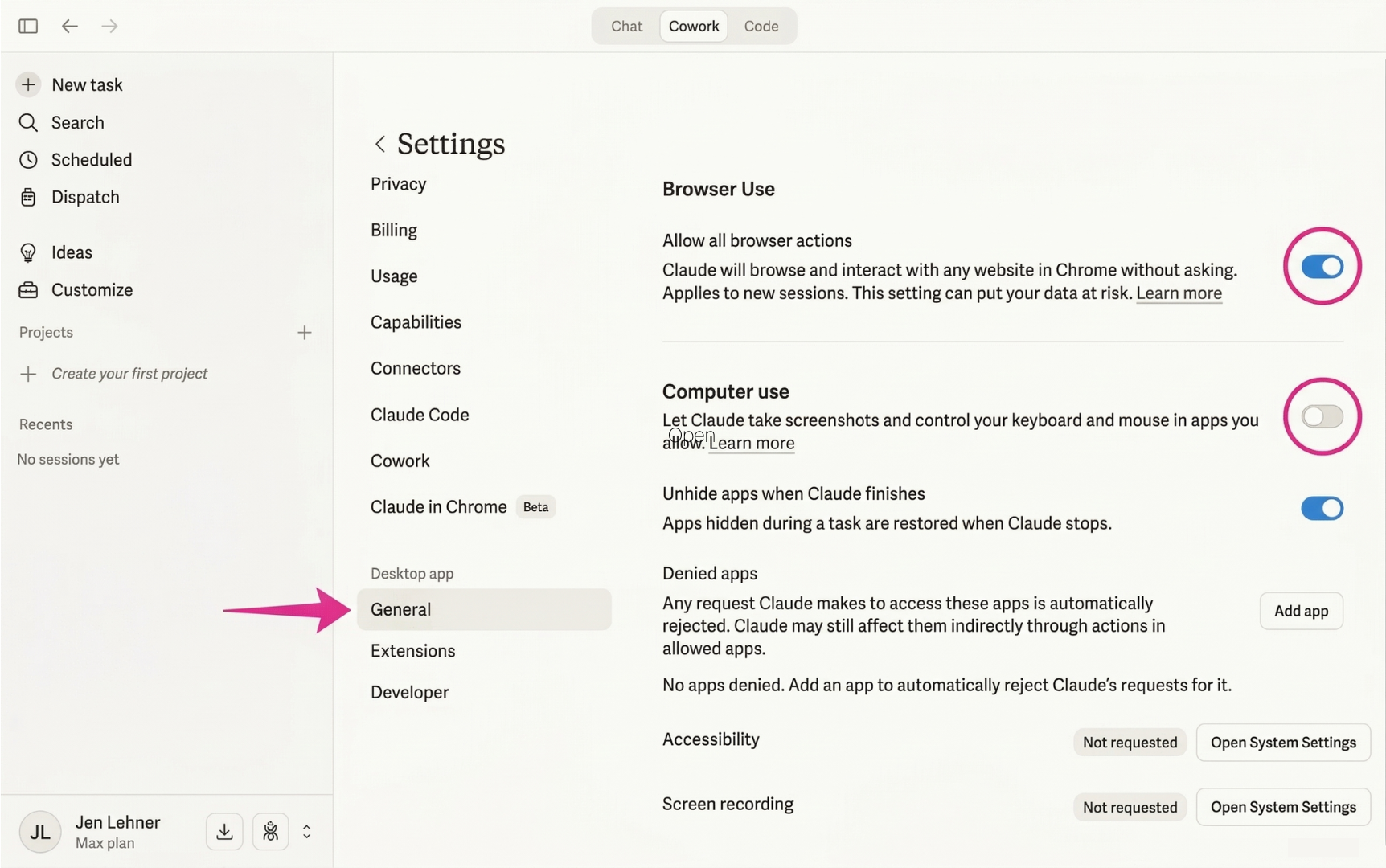
- Go to Settings → Desktop App → General → turn on Browser Use and Computer Use.
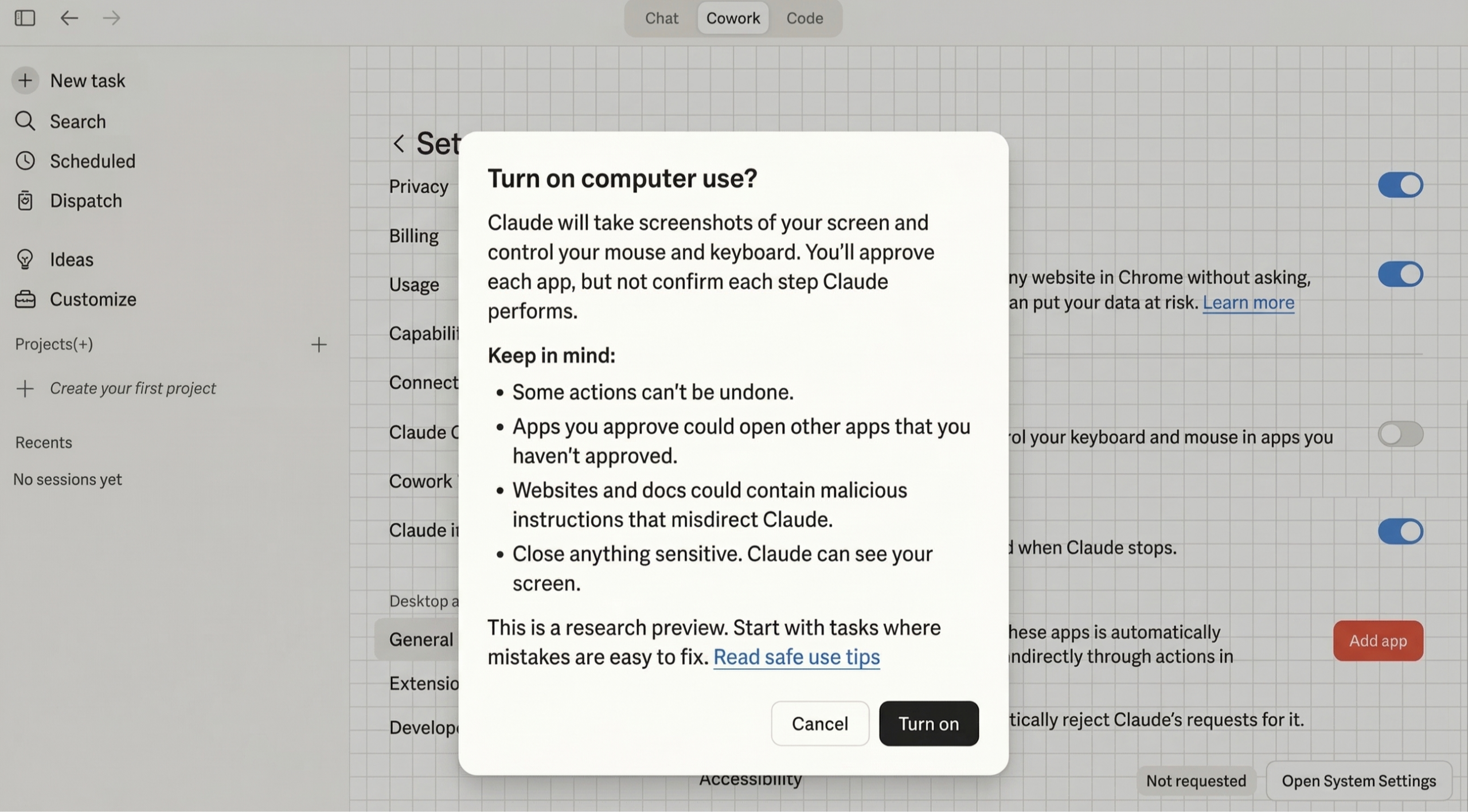
- You'll need to click "Turn On" to confirm — it'll ask. Say yes.
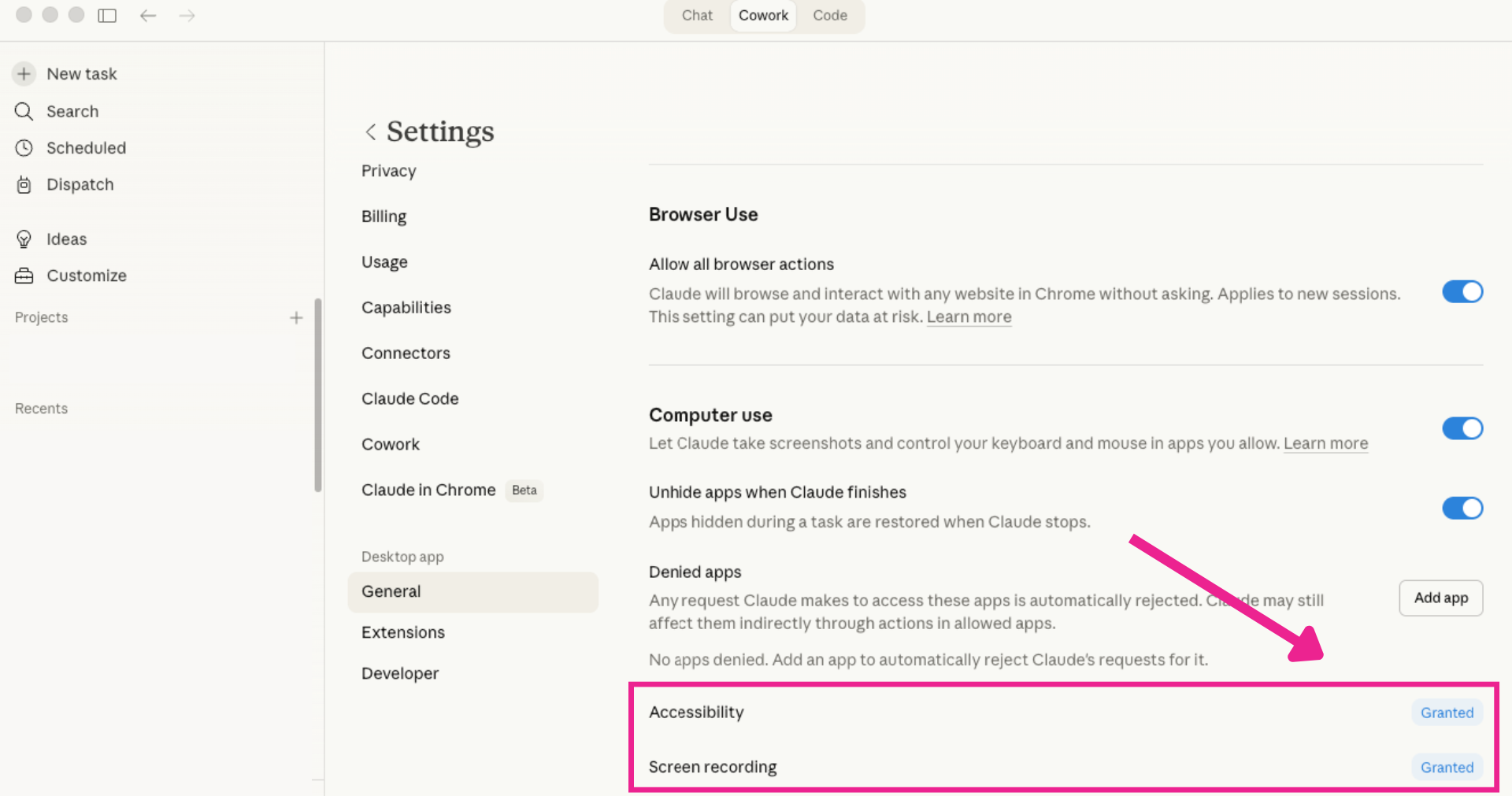
- Grant Claude Accessibility and Screen Recording access.
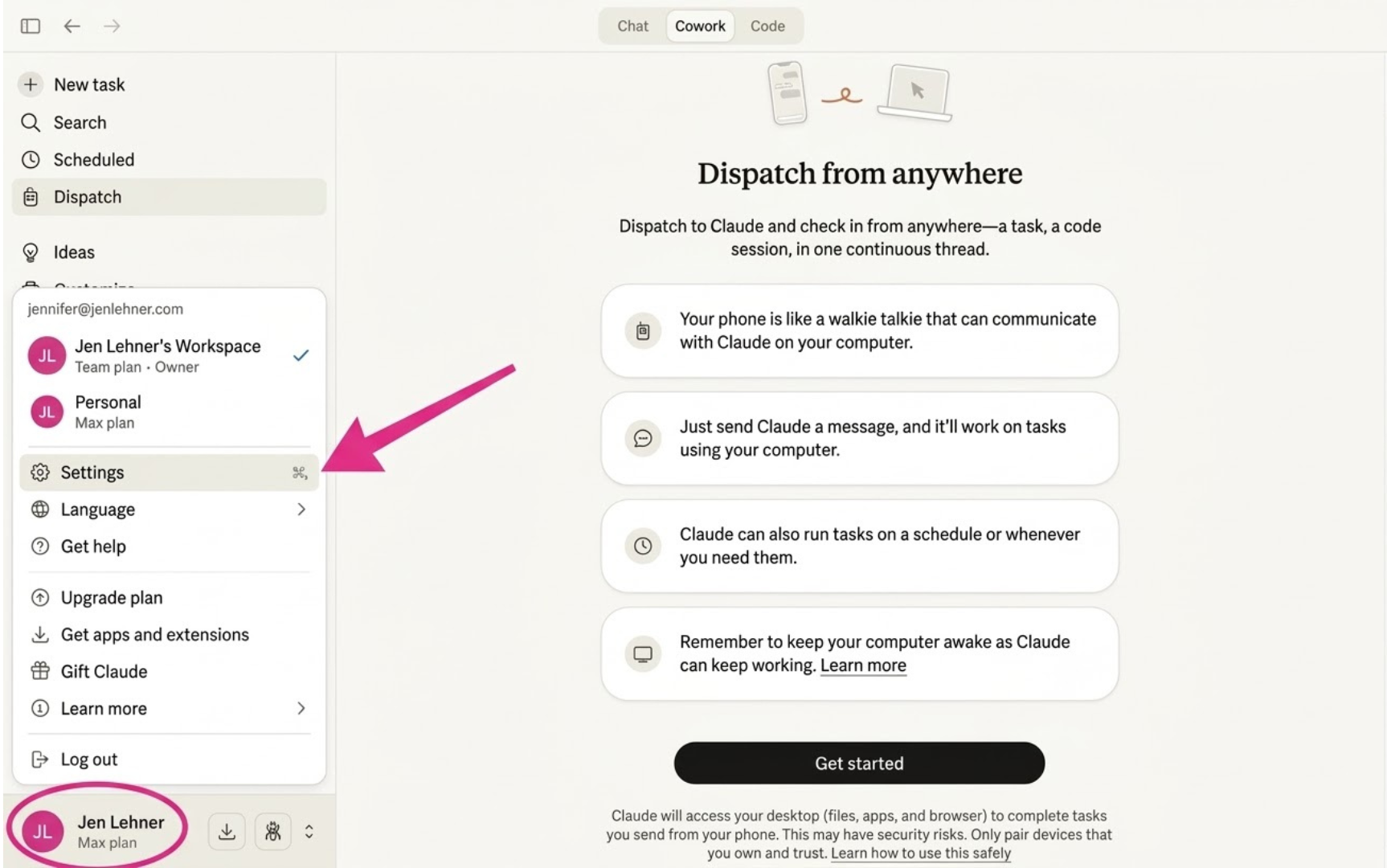
1. Click on your name (bottom left) and then on Settings.
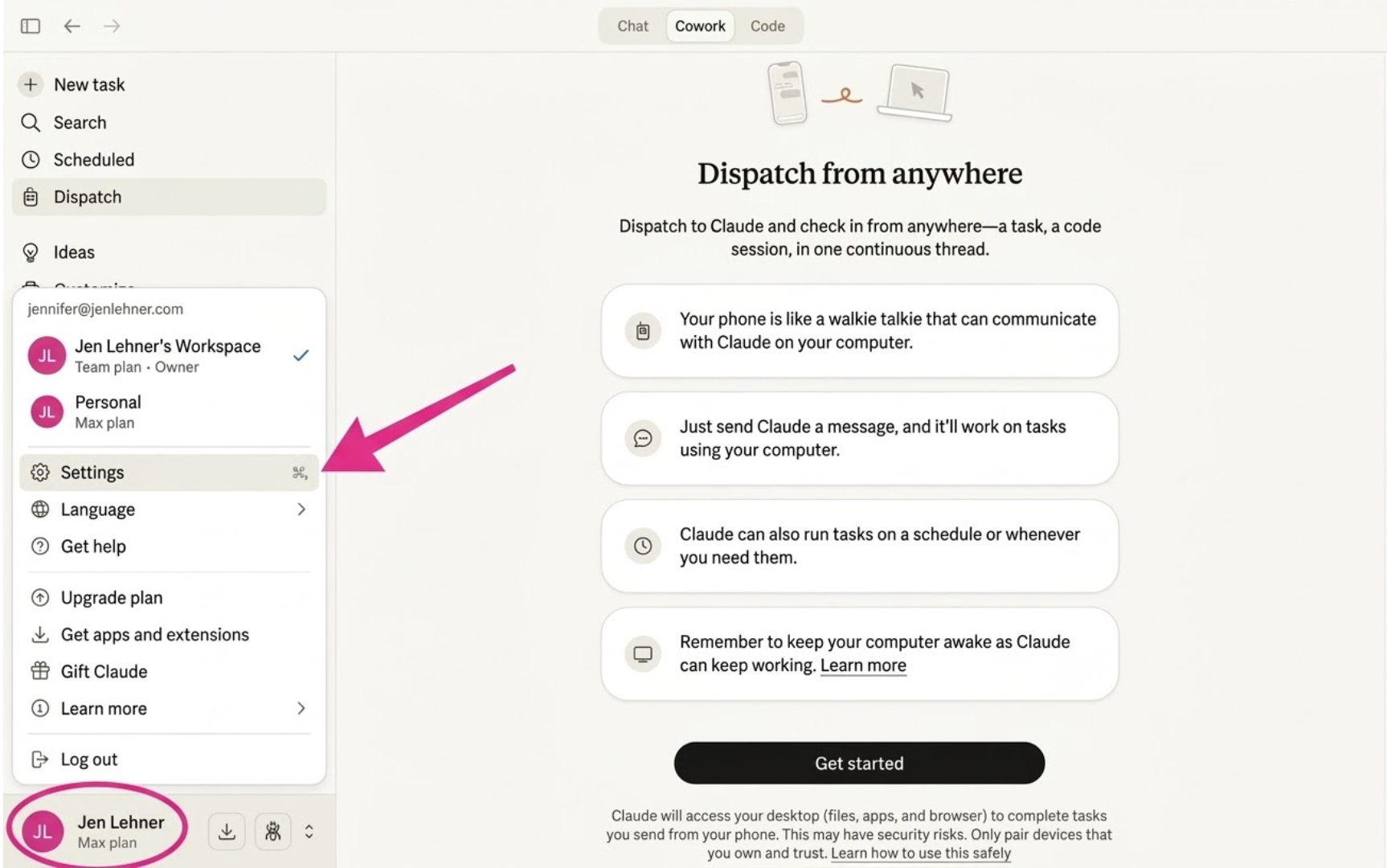
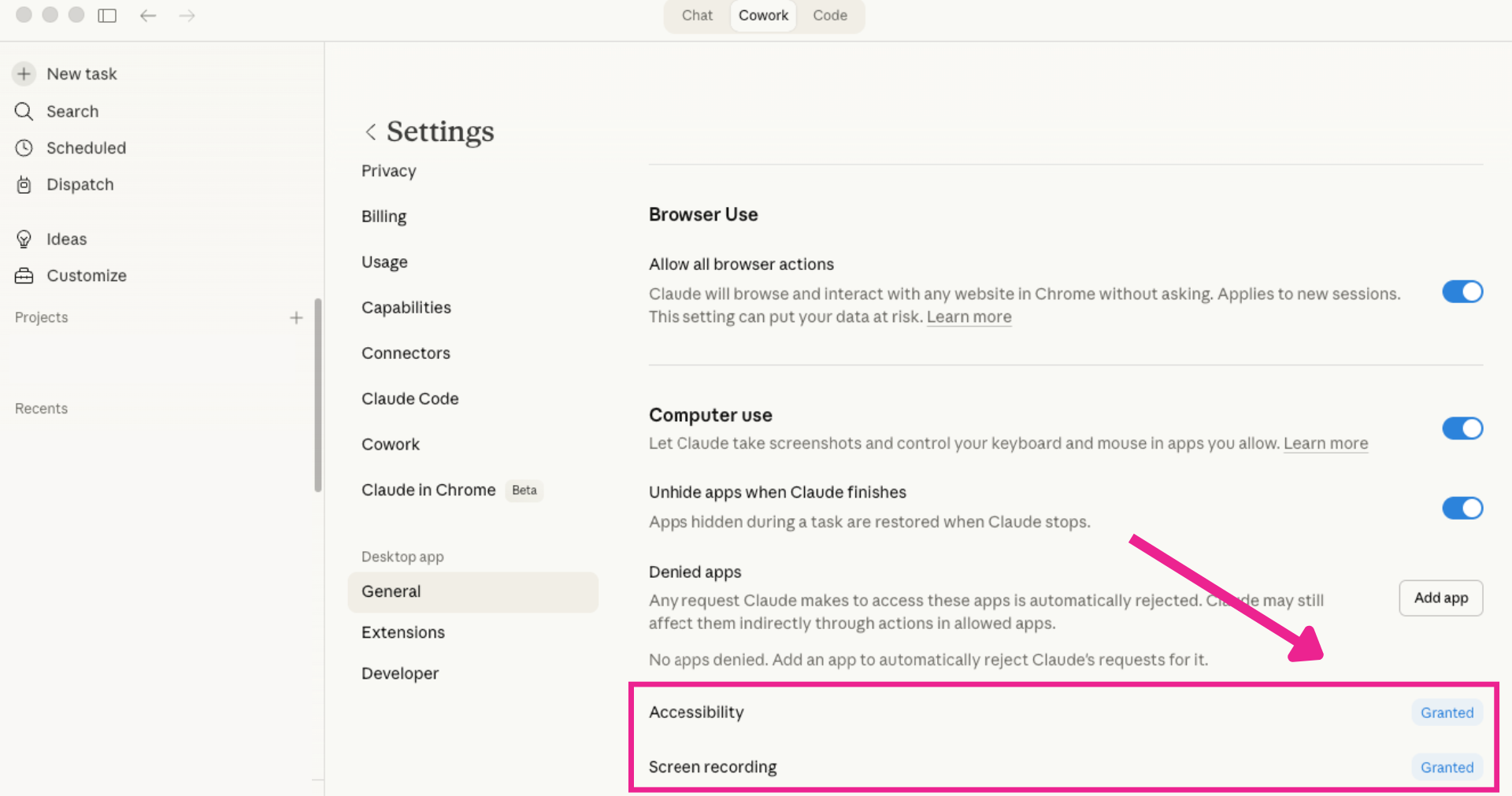
2. Go to Desktop app > General > Turn on Browser use > Turn on Computer use.
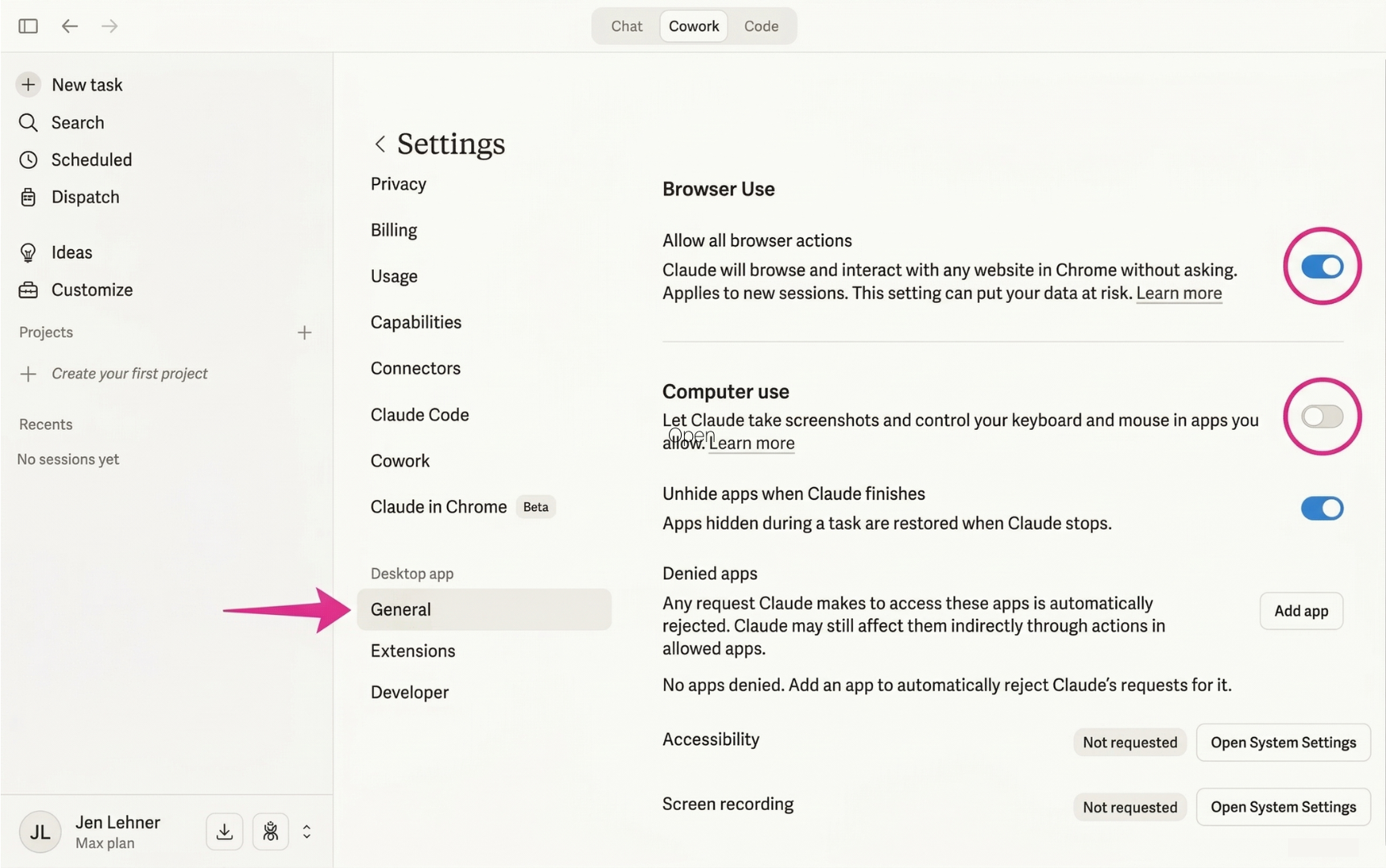
3. When toggling on Computer use, you must accept by clicking Turn on.
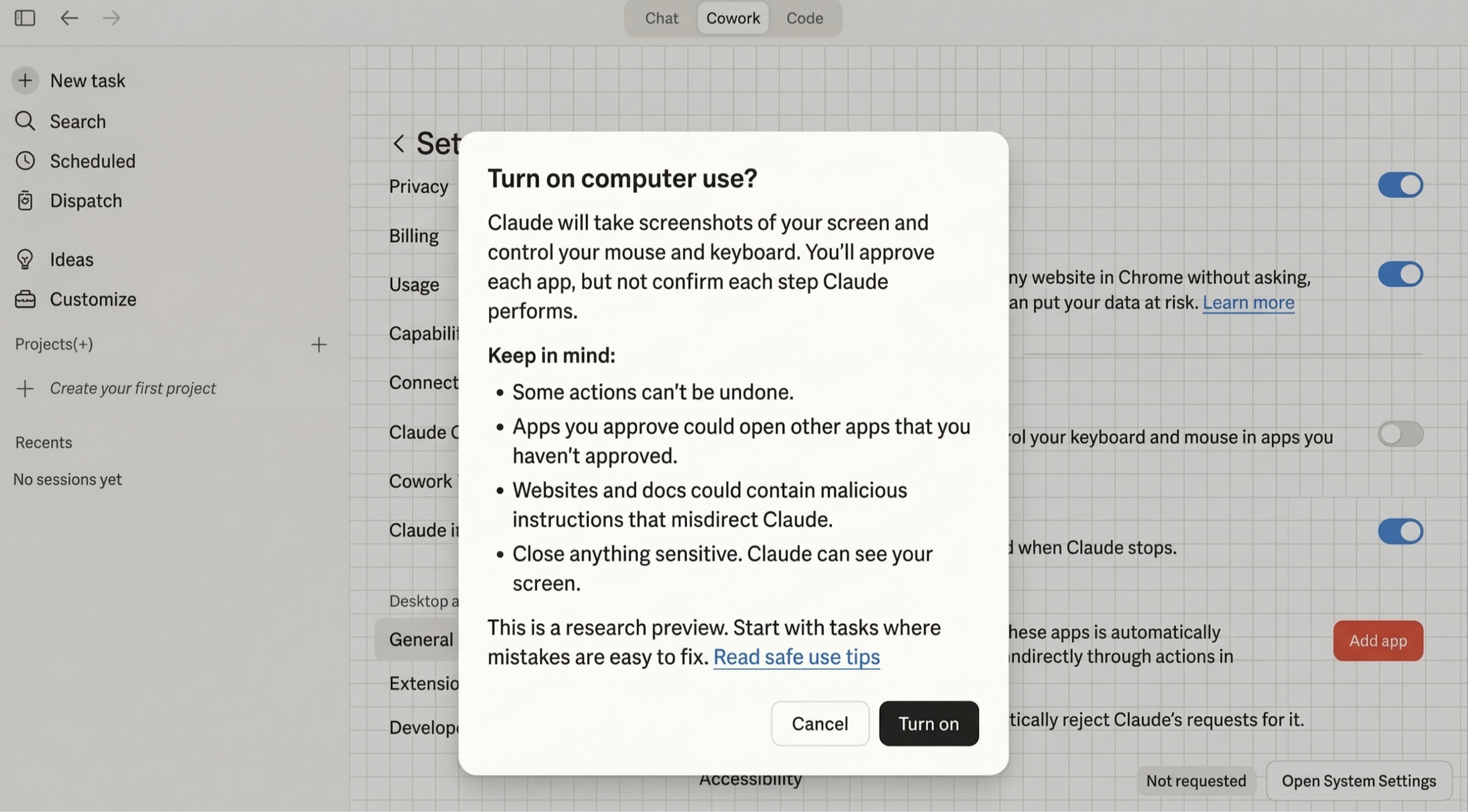
4. I also clicked on Accessibility and Screen recording to grant Claude access.
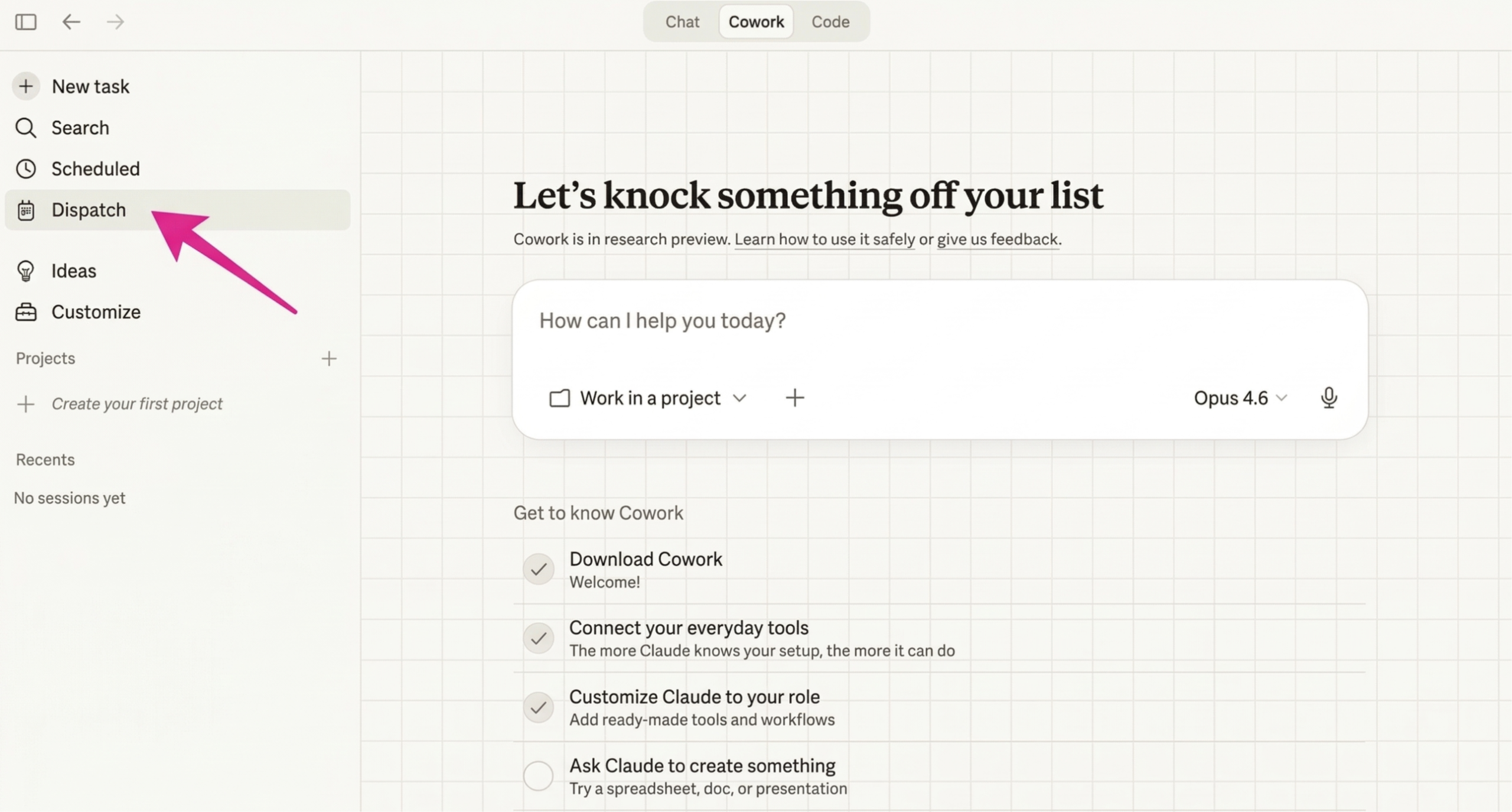
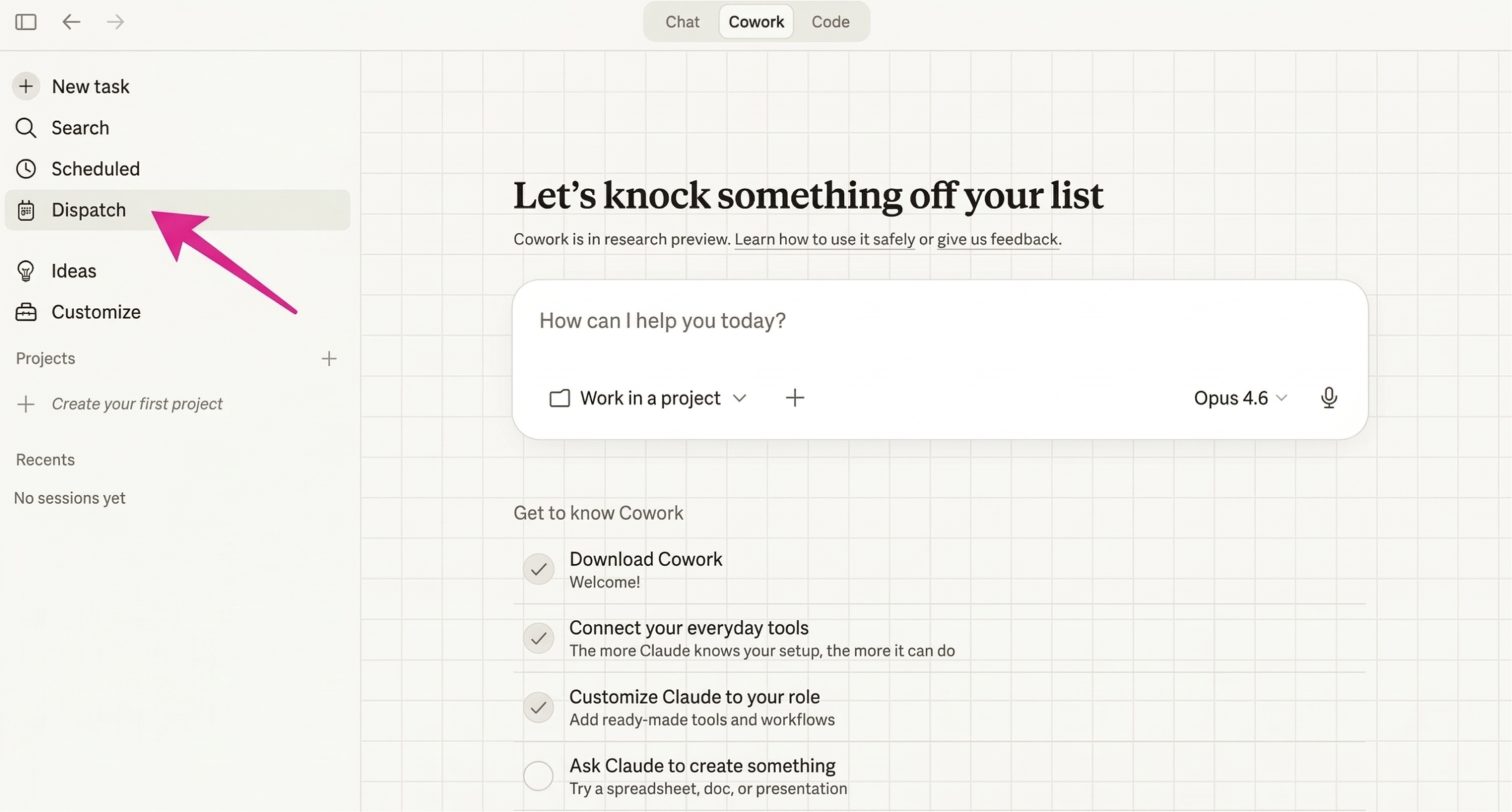
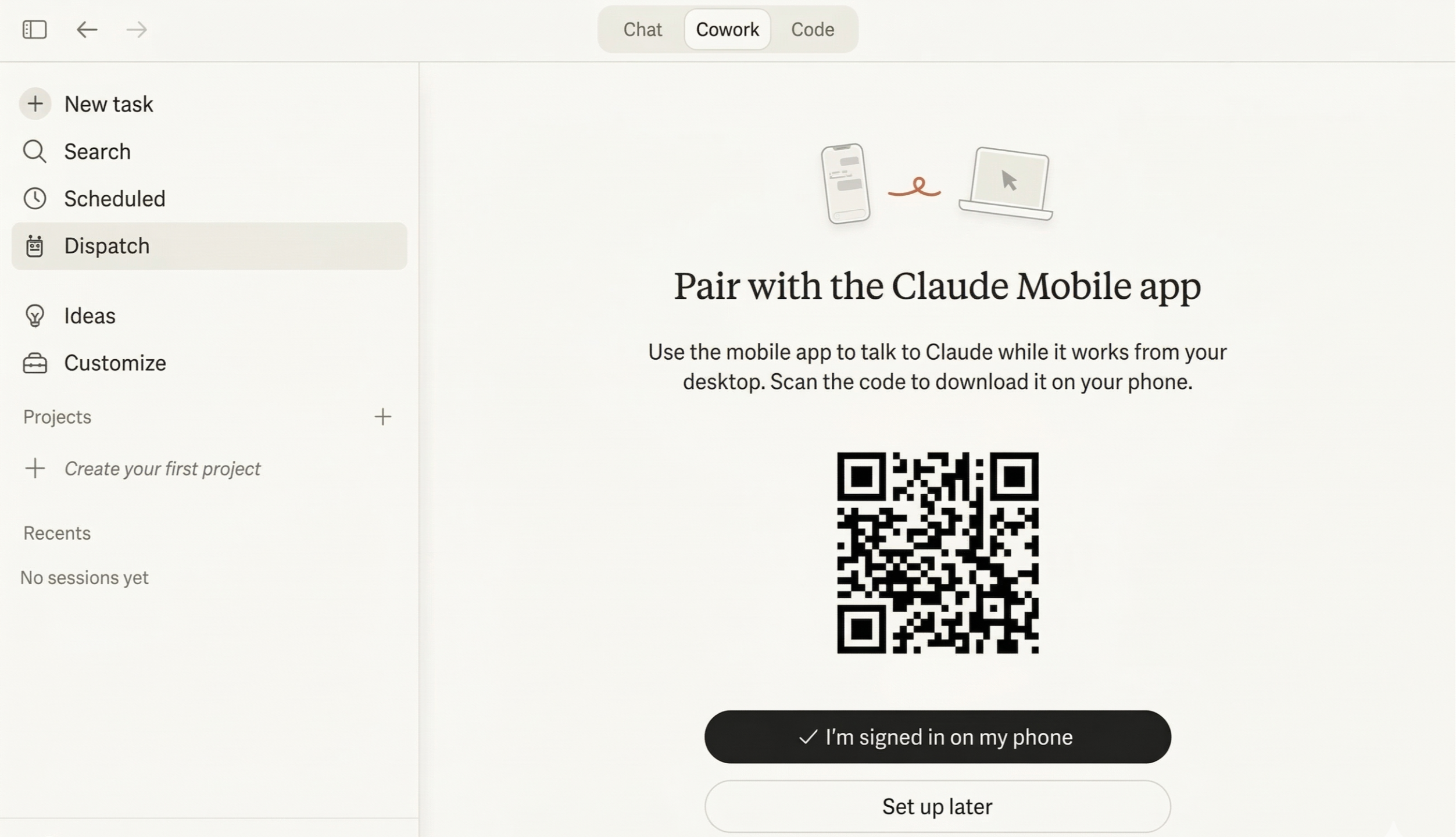
Once done, connect your Computer to your phone with Claude Dispatch. Go to your left bar menu on the Claude desktop app. Click on Dispatch. And follow these steps:
5. Click on Dispatch. It’s only available on the desktop app for paid personal accounts.
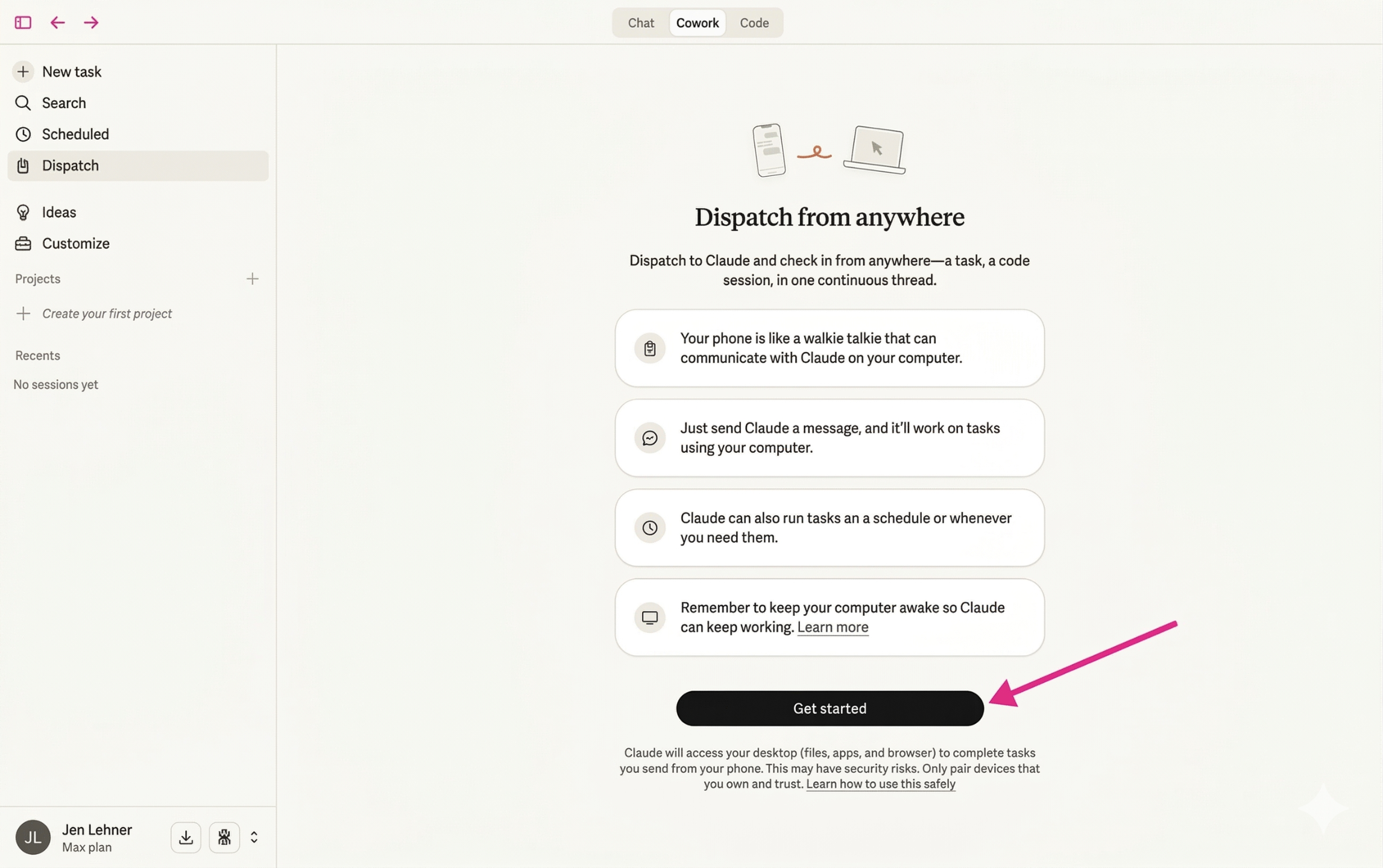
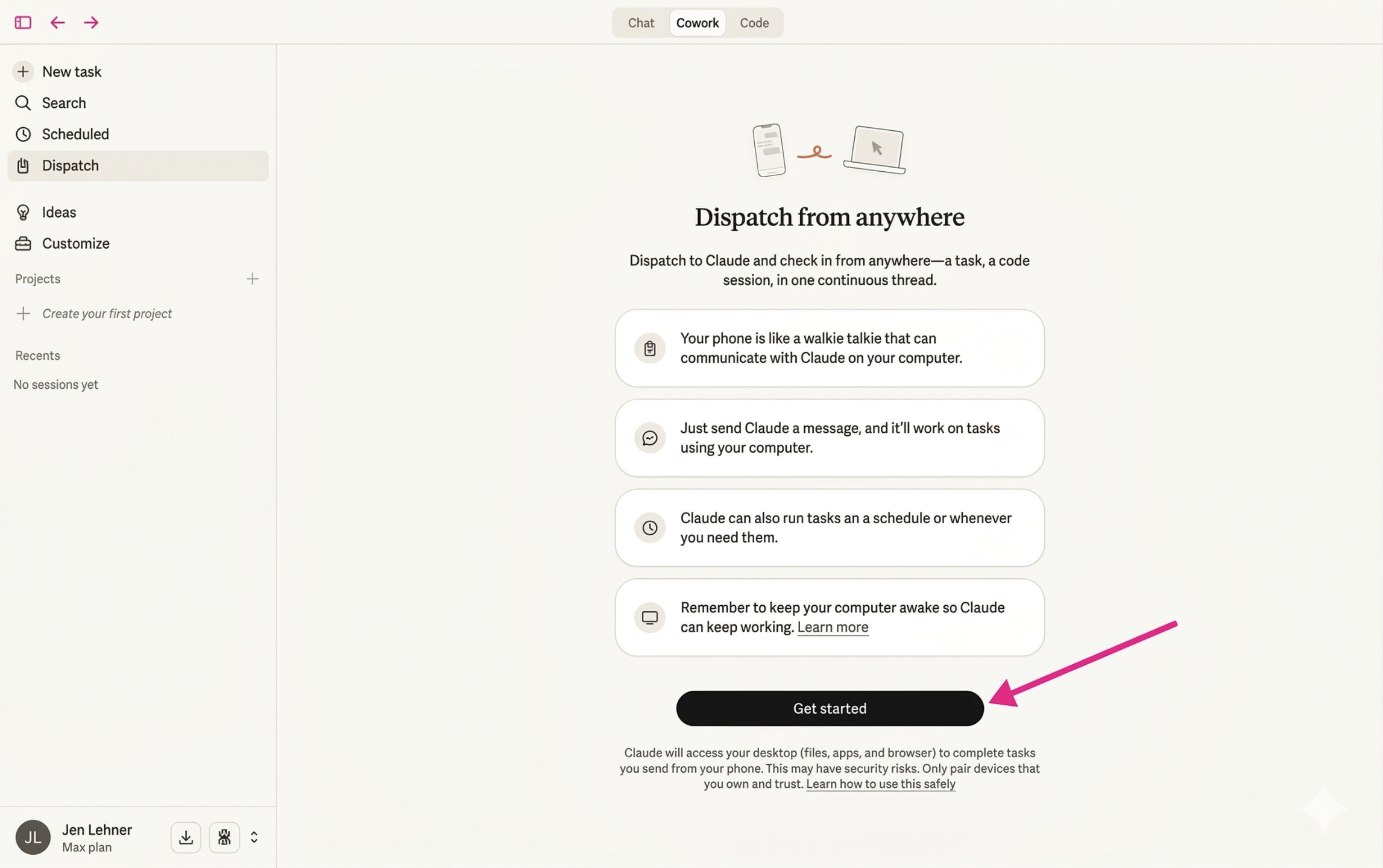
6. Click on Get started.
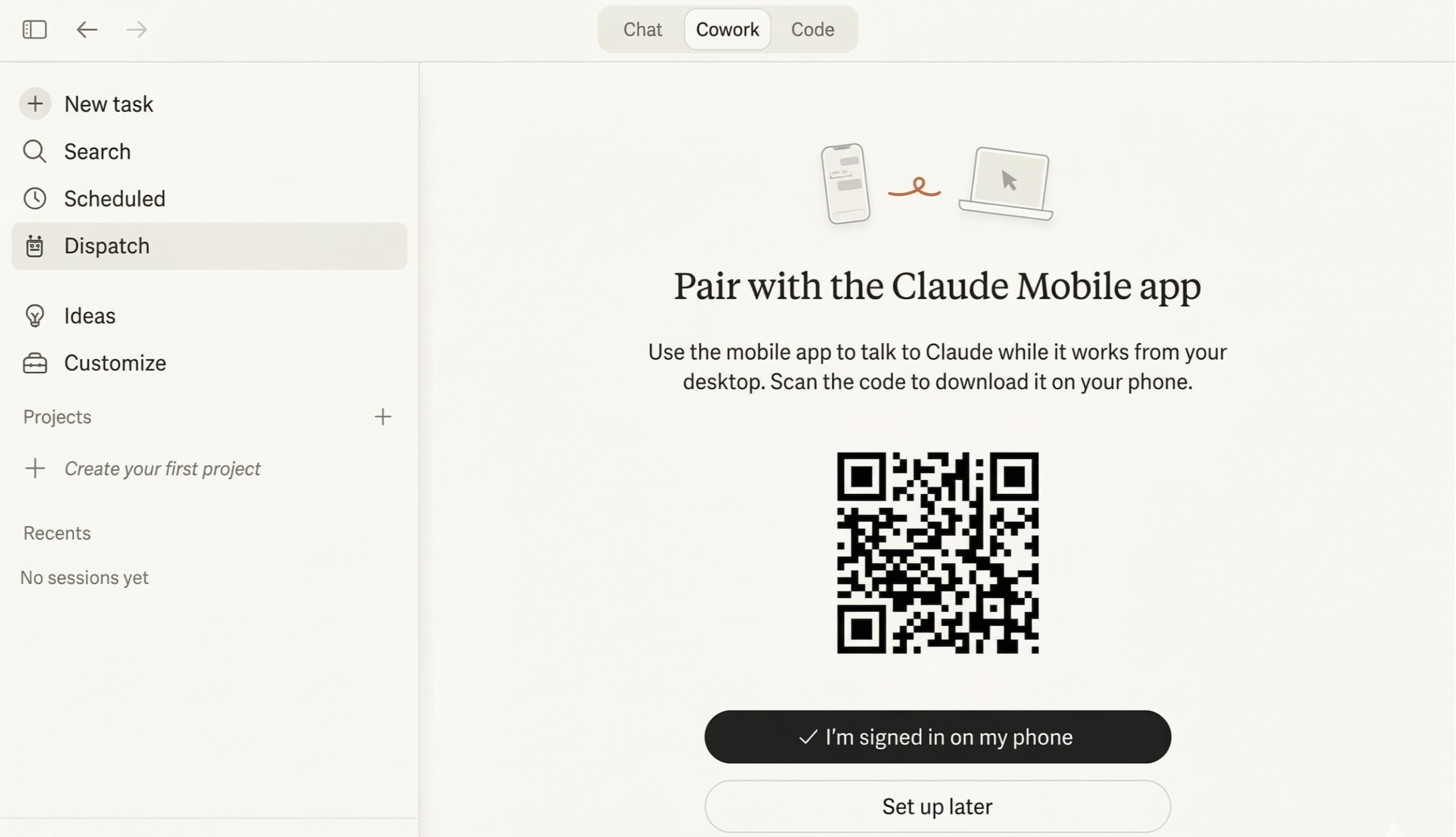
7. Scan this QR code with your phone. Make sure you have the Claude app on your phone, too. And connected to the same account. It’s free.
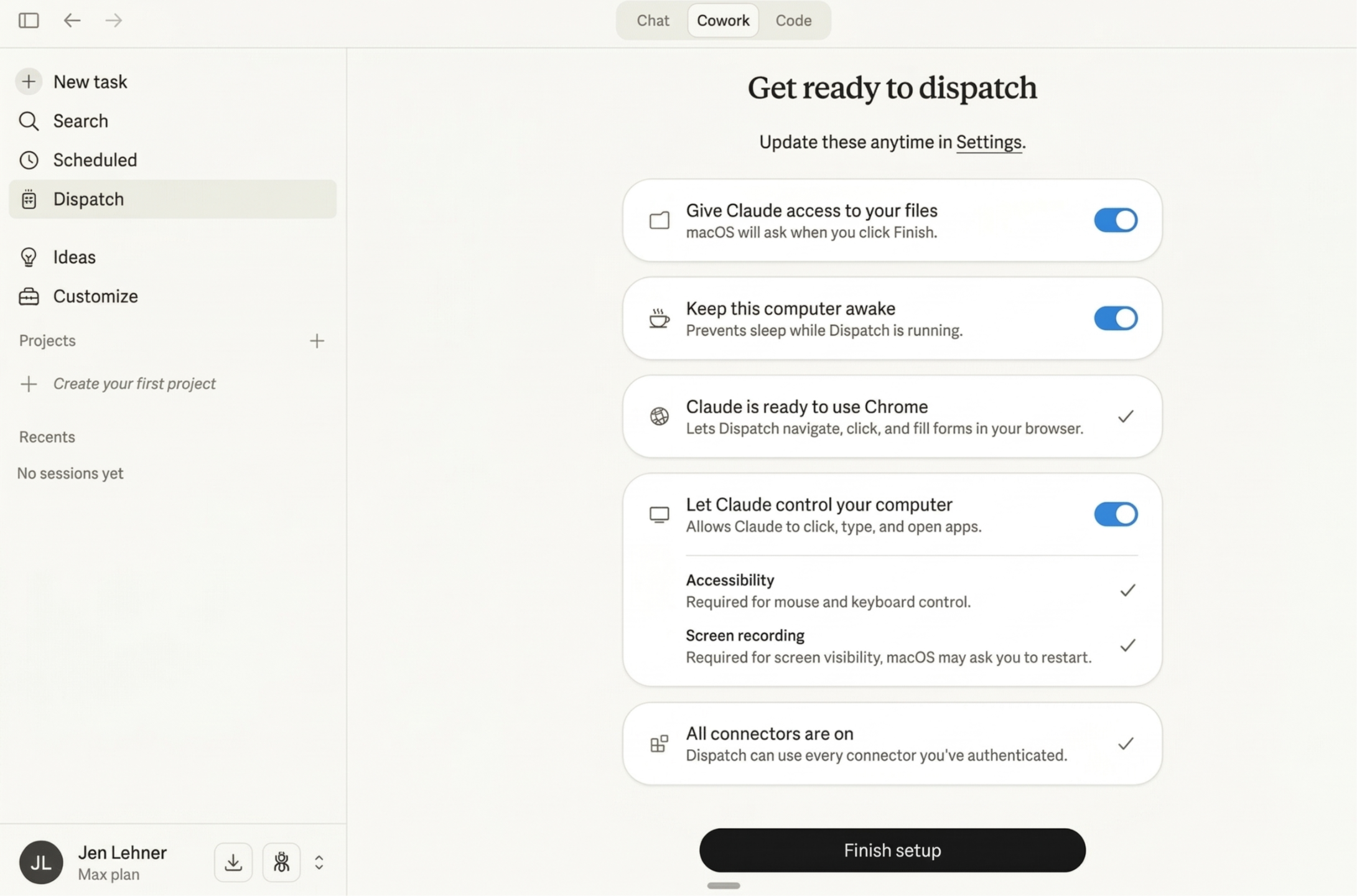
8. Turn on every setting. Then click Finish setup.
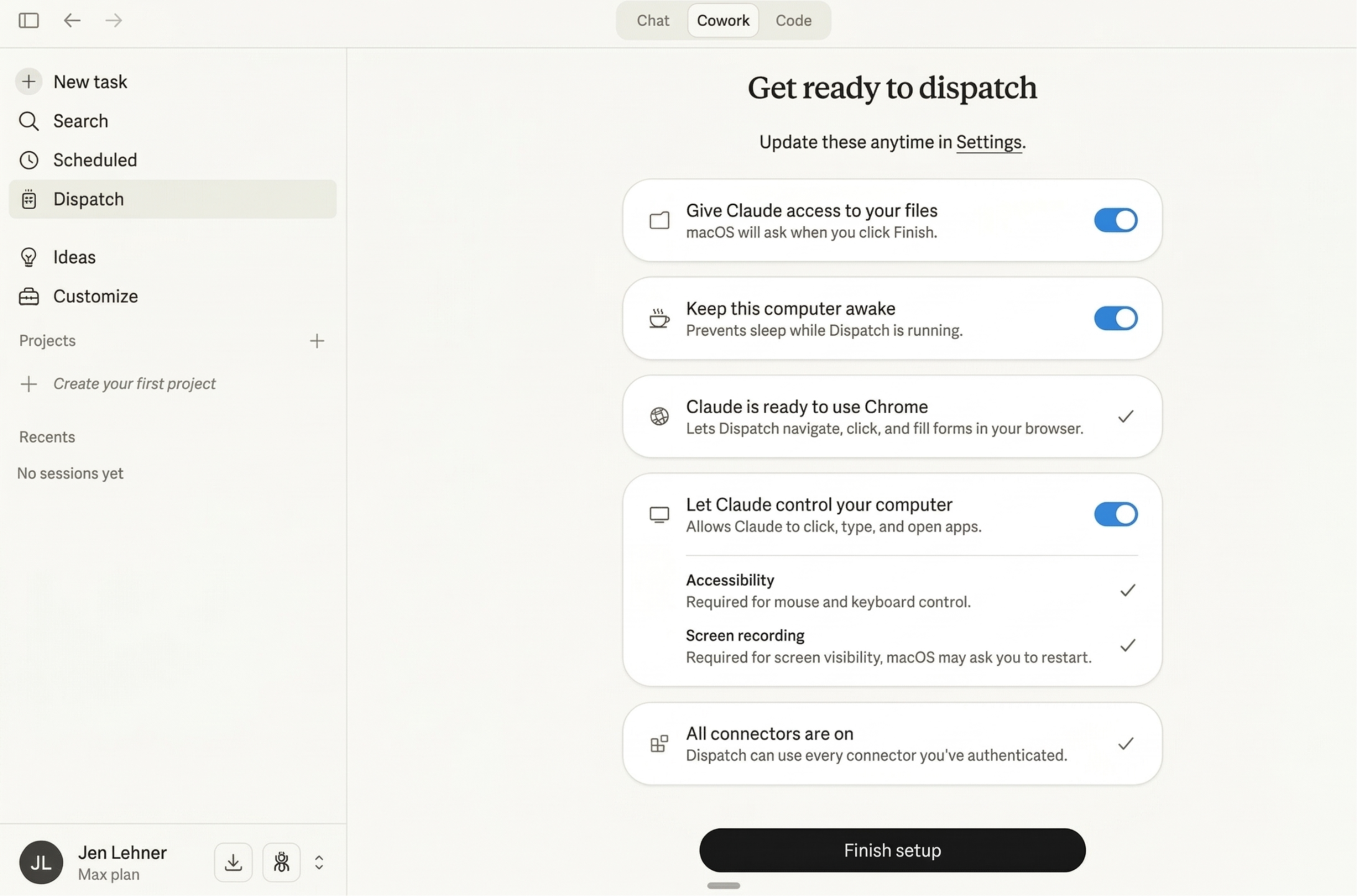
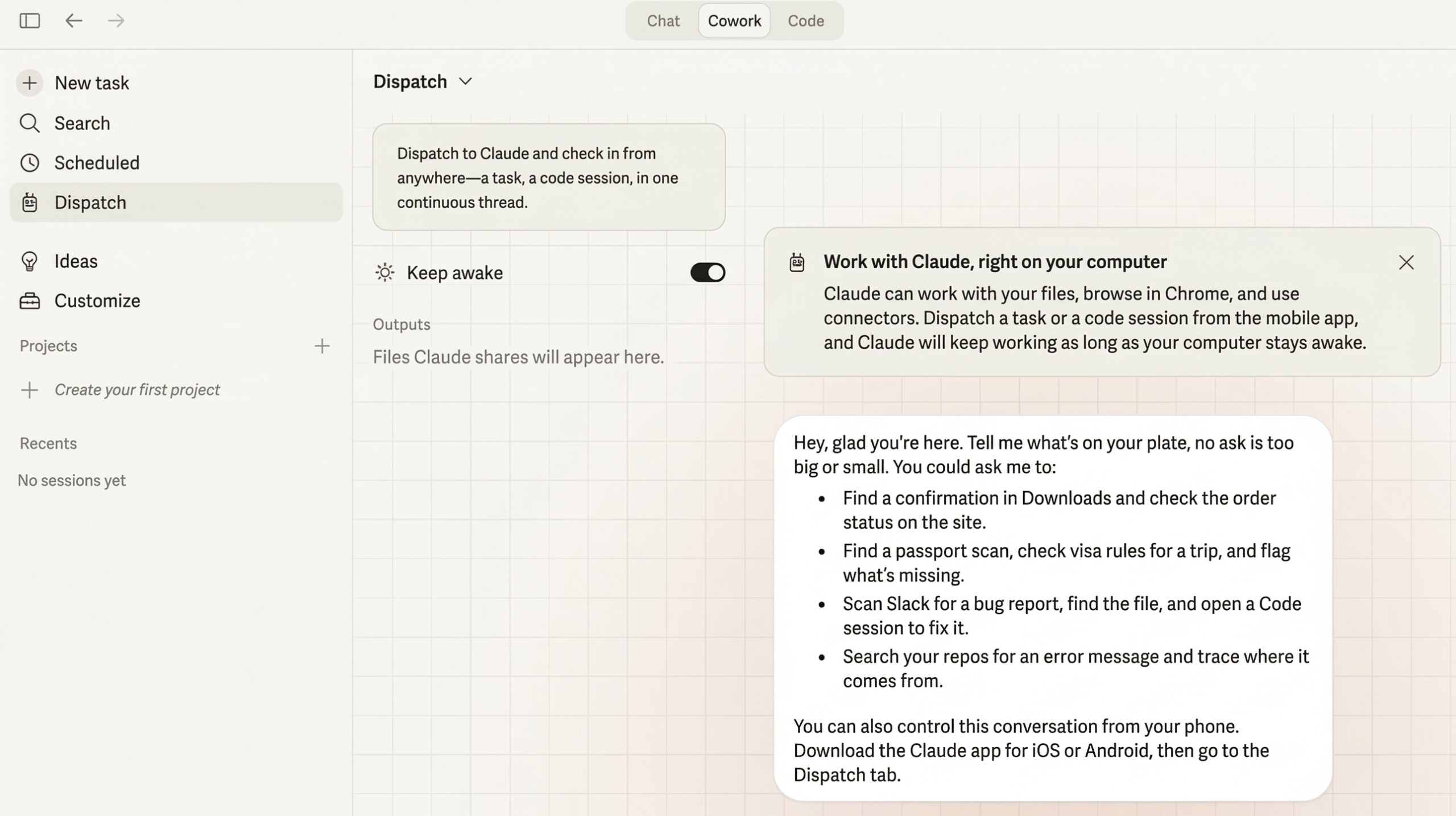
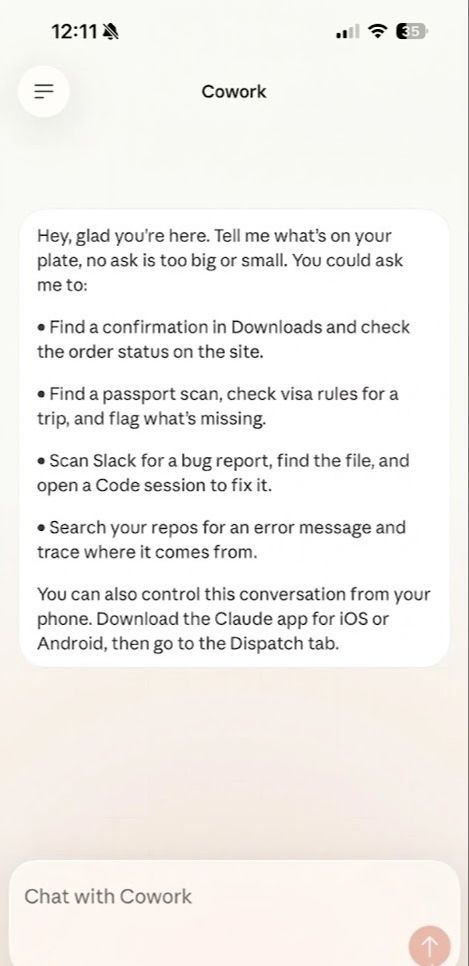
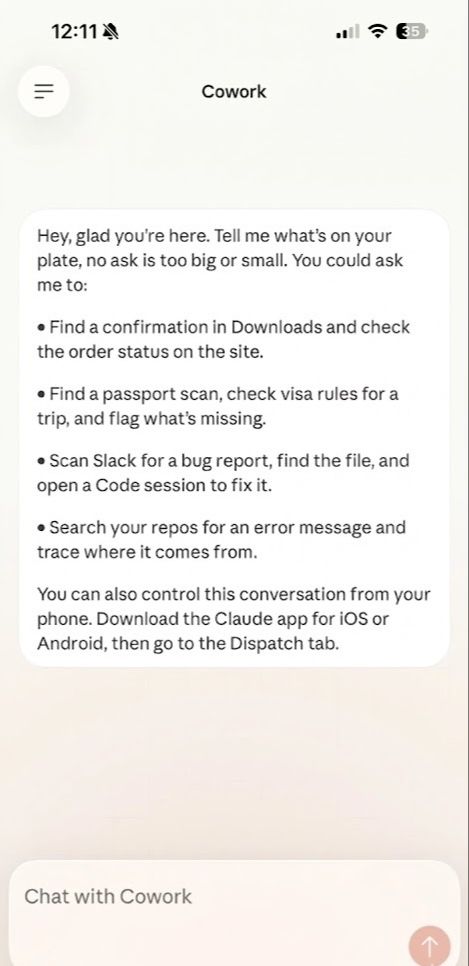
This is what my computer sees.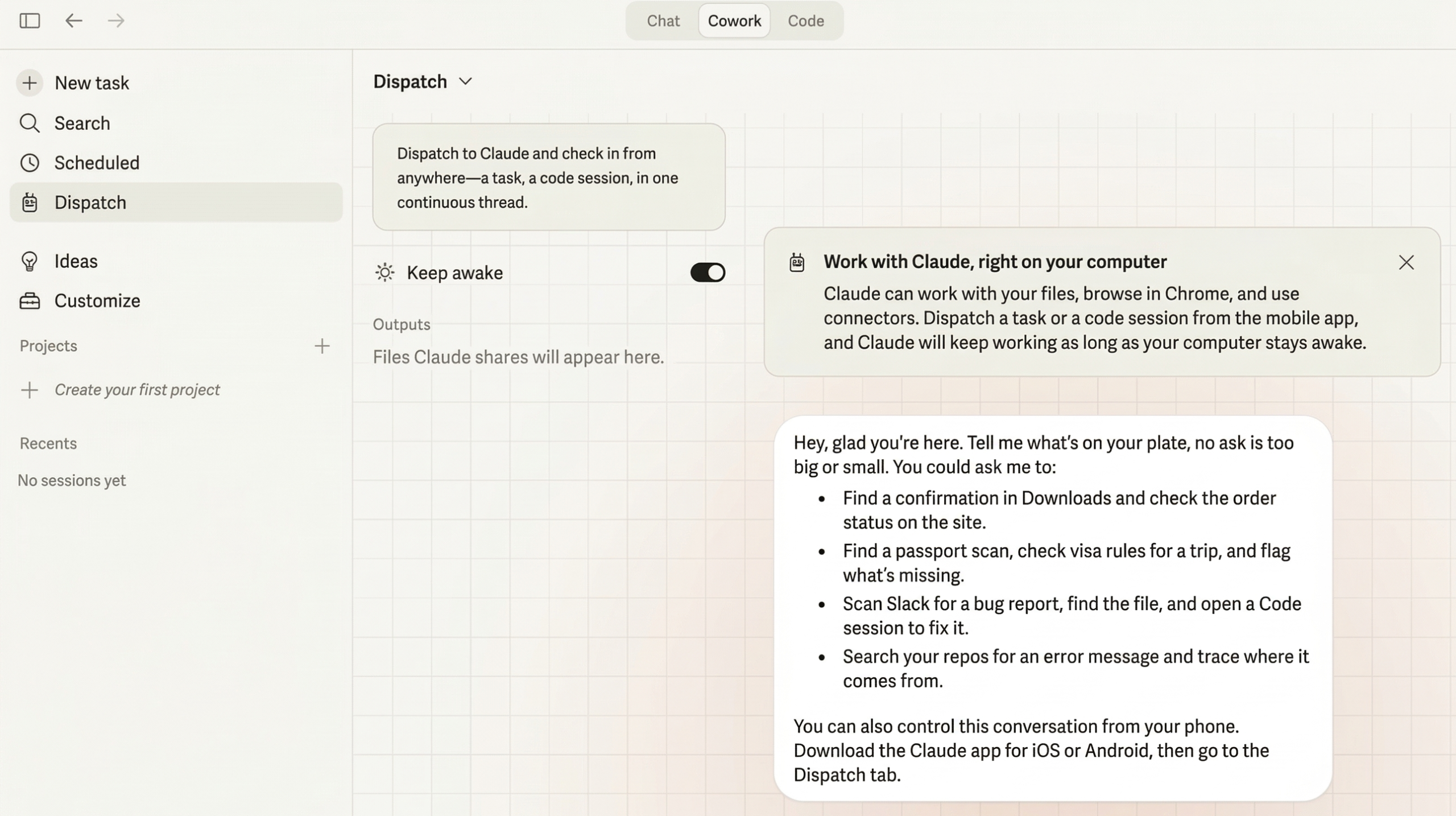
This is what my phone sees. The same thing.
How to Schedule Recurring Tasks
OK so the use cases are cool. But the scheduling feature is what really got me.
You can tell Claude to do things on a schedule. Every day. Every week. Whatever you need.
Steps to set it up:
- In the Claude desktop app, click Scheduled in the left sidebar.
- Click New task.
- Give it a name and description.
- Write the prompt. (Test it first in a normal chat to make sure it works.)
- Choose a frequency: daily, weekly, or manual.
- Set the time.
- Under "More options," pick your model (I use Claude Opus 4.6) and folder.
- Hit Save.
Your computer needs to be awake for scheduled tasks to run. Keep that in mind.
A Few Things to Know Before You Start
I want to be real with you about this because I'd want someone to be real with me.
It's not perfect. Claude is going to make mistakes. It might click the wrong thing or get confused by a pop-up. This is a research preview, not a finished product. Start with low-stakes tasks and build up.
It can be slow. Watching Claude navigate your screen is like watching someone use a computer for the first time. It's methodical. Click. Wait. Screenshot. Click. Don't expect speed. Expect thoroughness.
Close anything sensitive before you start. Claude sees your screen. If you have your bank account or private messages open, close them first. Or add those apps to your Denied list in Settings.
Your computer must stay awake. I'm going to say this one more time because I guarantee someone will email me about it. If your Mac goes to sleep, Claude stops. Go to System Settings > Displays > Advanced and crank up the sleep timer. Or just toggle "Keep awake" on in the Dispatch settings.
It now works for Teams accounts too. They updated this recently. So if you're on a business plan, you're good.
Why I Think This Is a Big Deal
We talk about AI all the time. We've used it for writing, brainstorming, even building automations.
But this is different.
This is an AI that does stuff on your actual computer. Opens your browser. Uses your tools. While you're at dinner or dropping kids off at school or, I don't know, halfway through a walk wondering how your analytics are doing.
If you wear every hat in your business, this is the closest thing to having a real assistant I've ever experienced.
I'm not saying quit paying your VA. (Hi, I love my team.) But all those tasks that never get done because they're too small to delegate and too tedious to prioritize... this is the thing that actually gets them done.
In the Claude desktop app, go to the left-hand menu and click Dispatch, then follow these steps:
5. Click Dispatch. This feature is only available on the desktop app for paid personal accounts.