Claude Chat and Cowork Merge, Plus Gemini Connectors and Siri
Sep 18, 2026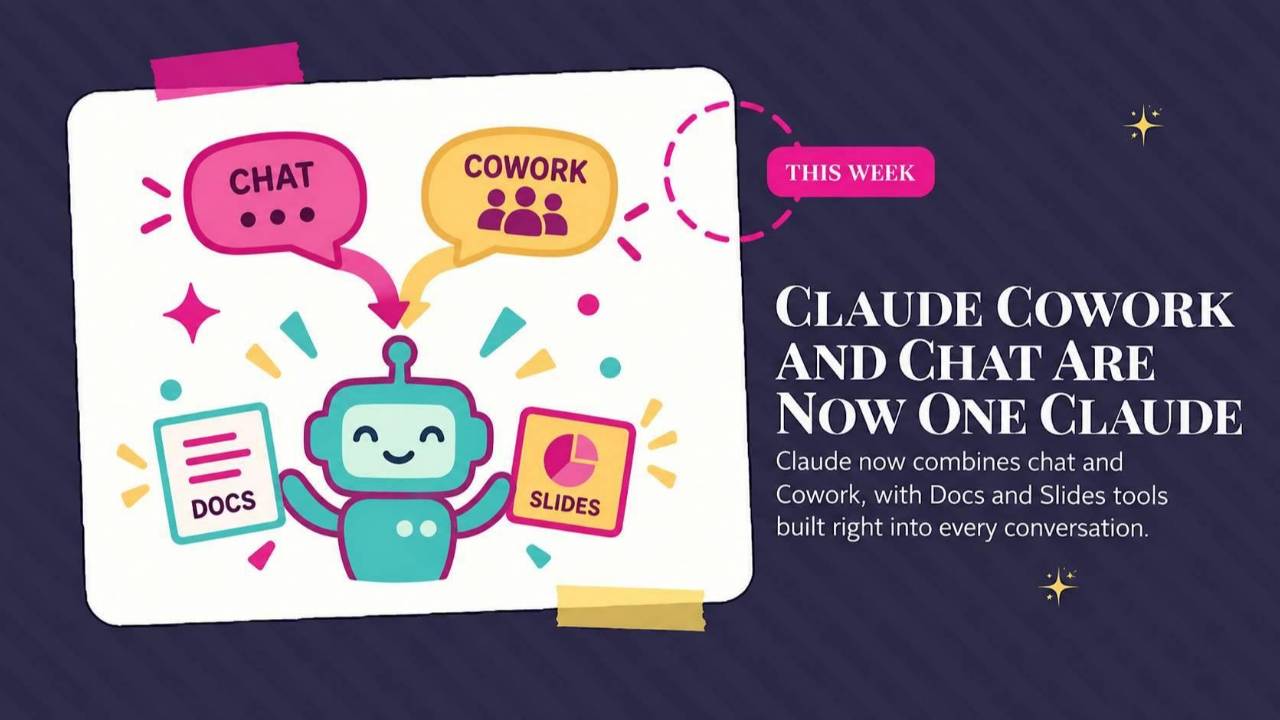
Claude brings chat and Cowork into one experience, Gemini adds connections to HubSpot, QuickBooks, and Mailchimp, and Apple rolls out its new Siri. See what each update means for everyday business tasks, plus a prompt to rebuild your LinkedIn profile.
Weekly AI Highlights: September 12-18, 2026
What Small Business Owners Need to Know Right Now
Hey Reader,
Last day in Morocco. It’s been amazing. Ended the trip with a hot air balloon ride and it was pretty special….
Meanwhile, back on the ground, three AI tools got a lot more useful. Claude merged Chat and Cowork into one. Apple finally released the new Siri. And Gemini can now pull from HubSpot, QuickBooks, and Mailchimp while you work in Google Docs and Sheets.
1. Claude Chat and Cowork Are Now One Claude
Until now, Claude had two doors.
Chat was for questions and quick back and forth. Cowork was for handing off a whole job, like a report or a spreadsheet, and getting a finished file back.
You had to pick the right door before you started.
That choice is gone. There is one conversation now. Ask a quick question and you get a quick answer. Hand over a big job and Claude works through the steps on its own: searching the web, reading your files, and building the finished document, spreadsheet, or deck.
What this looks like day to day
- You can walk away. Bigger jobs keep running in the cloud after you close your laptop, and the result waits for you in the conversation. One exception: jobs that use files or apps on your own computer need the Claude Desktop app open.
- You get real files back. Word documents, spreadsheets with working formulas, and decks that open in PowerPoint.
- You can make docs, slides, and designs right in the chat. Claude Docs, Claude Slides, and Claude Design are in beta on all paid plans. Fix a line in the doc yourself, leave Claude a comment on a slide, then present, export, or share everything at one link.
- You can check in from your phone. Start a job at your desk, then answer Claude's questions from the Claude app while you are out.
- You decide how much Claude checks with you. A permission setting in the message box has two options. Manual is the default, and Claude asks before it takes an action. Auto lets Claude keep going without stopping at each step.
What moved
- Your old Cowork tasks now sit with your chats in Recents.
- Cowork's Global instructions are now part of Settings → General → Instructions for Claude.
- The web search toggle is gone. Claude searches the web on its own when it helps.
- Research is under the + button below the message box. You can also type /deep-research.
Who gets it
It is rolling out slowly to Pro and Max on web, desktop, and mobile. Other plans come later. Two people on the same plan may get it on different days, and there is nothing for you to turn on.
If your message box still shows separate Chat and Cowork options, you do not have it yet. Once it arrives, you cannot switch back. Your chats, projects, connectors, skills, and files all come with you.
A few limits for now. You cannot branch off a new version of a conversation from an earlier message. Incognito chats still open the old way, so they cannot create files. And search does not find older Cowork tasks, though you can still find them by name in Recents.
One more thing. Big jobs use more of your plan than a quick question does. You can see where you stand in Settings → Usage.
Source Link:Read more: 1. Claude Chat and Cowork Are Now One Claude
2. Gemini Can Now Pull From HubSpot, QuickBooks, and Mailchimp
Google connected Gemini to seven business tools: Asana, Atlassian Rovo, HubSpot, Mailchimp, QuickBooks, Monday, and Salesforce.
A connector is a pipe between your AI and another app. It lets Gemini look inside that app for you, so you are not downloading a report and pasting it in.
So you can be in a Google Sheet and ask Gemini to bring in numbers from QuickBooks. Or be in a Google Doc and have it pull your latest Mailchimp results. No switching tabs.
You use it from the Gemini side panel in Docs, Sheets, and Slides, and in Google Chat.
It is available now on Google Workspace Business Standard and Plus, Enterprise Standard and Plus, and on personal Google AI Pro and Ultra plans.
On a Workspace account, it is on by default, and your admin controls which connectors stay on. If you run your own Workspace, the admin is you. The switch lives in the Admin console under Apps → Google Workspace → Gemini for Workspace → Third-Party Connectors.
Source Link:Read more: 2. Gemini Can Now Pull From HubSpot, QuickBooks, and Mailchimp
3. The New Siri Is Finally Here
Apple released iOS 27 on Monday, and with it a rebuilt Siri called Siri AI.
It runs on new Apple models built together with Google and its Gemini models.
The old Siri could set a timer. This one can hold a real conversation and find things buried in your phone.
What it can do
- Search your messages, email, and photos. Ask what a client sent you about Thursday's meeting and it can find it.
- See your screen. On an event page, ask Siri to add the dates to your calendar.
- Write almost anywhere you type. In Mail and Messages, it matches how you usually write to each person, down to your punctuation.
- Look through your camera. A new Siri mode in the Camera app answers questions about what is in front of you, like turning a flyer into calendar events.
- Build automations from a description. Shortcuts is Apple's app for automating tasks on your phone. Now you describe what you want and it builds the shortcut for you.
- Keep a history. A new Siri app saves your conversations and syncs them across your Apple devices.
The catches
- You need an iPhone 15 Pro or newer. On Mac and iPad, you need an M1 chip or later.
- It is labeled beta and works in English only for now. French, Japanese, Korean, Portuguese, and Spanish arrive in October.
- It is not available on iPhone or iPad in the EU yet, and not in China.
- There are daily usage limits. Apple says expanded access will cost extra down the road.
Source Link:Read more: 3. The New Siri Is Finally Here
HAPPENING NEXT WEEK
September 22 at 12 PM EST
How To Use YouTube's AI to Analyze and Create YouTube Content with Daniel Hill
In this training, you'll learn:
1. What is Ask Studio and how to access it
2. How to use Ask Studio to analyze your content
3. Leveraging Ask Studio's analysis to create better content
JOIN US TODAYPROMPT OF THE WEEK
Rebuild Your LinkedIn Profile With Gemini
Your LinkedIn profile is probably describing a version of you that no longer exists.
Different offer. Different direction. Written three years ago and never touched since.
Here is the fix, and it takes about fifteen minutes.
The trick is that you do not describe your profile to the AI. You hand it the actual profile as a file. LinkedIn will export the whole thing as a PDF for you in two clicks.
What it does: Gemini reads your current profile, asks you a handful of questions about what you actually want the profile to do for you, and then rewrites the whole thing. Headline, About section, and every job in your experience.
When to use it: when your profile is still selling the old you.
What you get back: a full rewrite you paste back into LinkedIn one section at a time.
One thing to notice: the prompt tells Gemini to ask you questions before it writes anything. Don’t skip this!
Here are the steps:
- Go to your LinkedIn profile. Click More, then Save to PDF.
- Open Gemini. Turn on Canvas and Thinking. Canvas is a side-by-side workspace where you can edit what the AI writes instead of scrolling through chat. Thinking makes it work through the problem before answering.
- Upload the PDF and paste the prompt below.
- Answer the questions it asks you.
- Copy each rewritten section back into LinkedIn.
Before you rewrite anything, ask me these questions one at a time and wait for my answer:
1. What is the number one job I want this profile to do? (book sales calls, bring in leads, attract job offers, grow my email list, build authority)
2. Who exactly am I trying to reach? Be specific.
3. What is my main offer, the thing I want people to buy or join?
4. What are the top two links I should feature, and what should each one say?
5. What proof should I highlight? Audience size, revenue, client names, press, results.
Once I've answered all five, rewrite my full profile:headline, About section, and every role in my experience section.
Write it in my voice, not corporate LinkedIn voice.
Short sentences. No buzzwords. No "passionate about."
If a section comes back close but not quite right, highlight it in Canvas and tell Gemini what to change. You do not have to start over.
Source: superhuman.ai
Comments
If any of this made you think differently about how you want to work with AI, hit reply and let me know. I read every message. Your questions shape what I cover next.
Have a great weekend,
Founder, Front Row AI Club
PS. Was this newsletter forwarded to you? Sign up to get it in your inbox.
Whenever you’re ready, here are 3 ways I can help you:
1. Join the Front Row AI Club. I'll show you exactly how to turn AI into an indispensable part of your business without the head-banging learning curve.
2. Interested in 1:1 coaching or consulting? Book a session here.
3. Want me to speak to your group or give a training? It’s my favorite thing!
You can find my previous newsletter articles here: The Front Row AI Report
© 2026, Front Row AI Club. All rights reserved.