Claude's Built-In Browser, ChatGPT Logins, and Gemini Live
Aug 28, 2026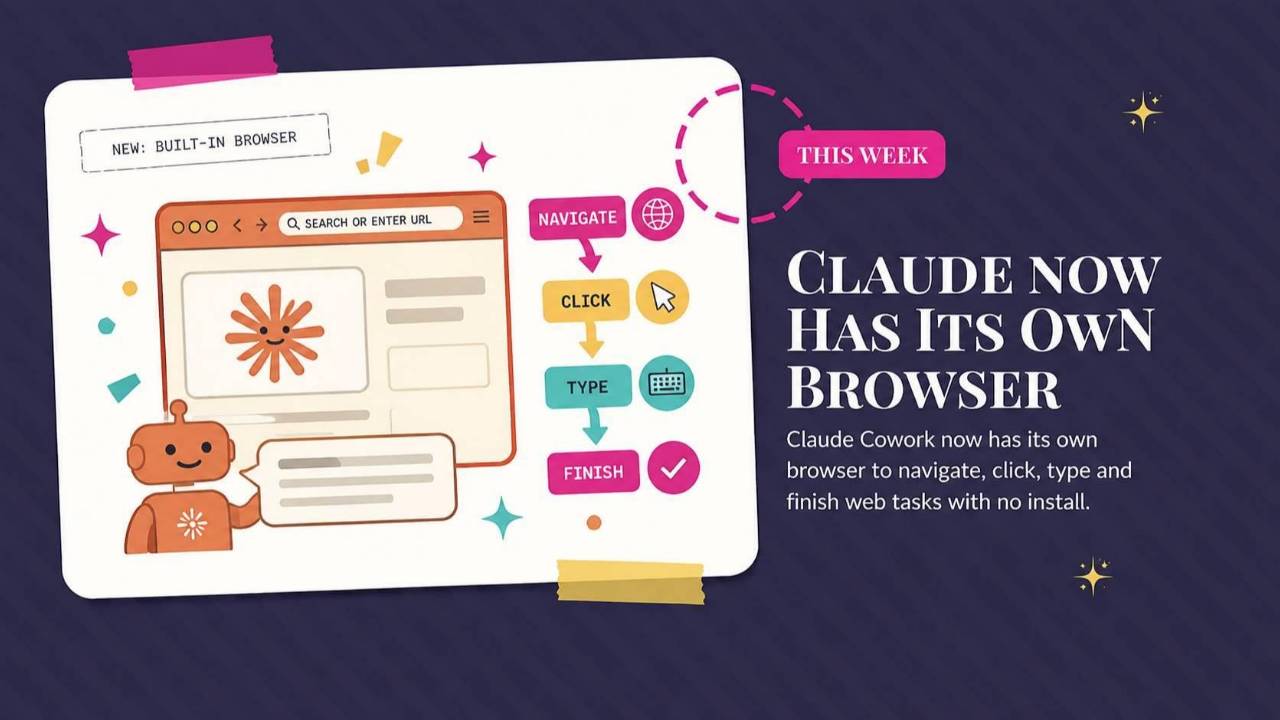
Claude adds a built-in browser and shared memory across its tools, ChatGPT can log into websites, and Gemini Live turns spoken requests into work. Read the practical uses and things to watch for, plus a prompt for turning your own judgment into a reusable skill.
Weekly AI Highlights: August 22-28, 2026
What Small Business Owners Need to Know Right Now
Hey Reader,
The last few days I’ve been at a business event at Pebble Beach. Yesterday I went to explore Carmel By The Sea. I found the most perfect spot at the top of a sand dune, where I planned to sit for half an hour.
3 hours later, I was still sitting there. Without looking at my phone, or my laptop, or anything at all. I just watched the people, and the dolphins and the water. Can’t remember the last time I just sat with my thoughts like that. It was amazing.
This annoying seagull thought I had food. Each time I stuck my hand into my little paper bag to get a piece of licorice, he tried to scoot up next to me. I decided to take his picture, not noticing that beam of light. Obviously he was a seagull angel. Or Luke Skywalker.
In the world of AI, far, far away from this setting, this week was about AI getting into places it could not reach before. Claude got a browser of its own, and ChatGPT can now work on sites that make you log in. Claude also carries one memory everywhere you use it. And Gemini will run your morning off your voice.
Let's talk about it...
1. Claude Now Has Its Own Browser, and There Is Nothing to Install
Cowork is the version of Claude that takes a whole multi-step job and hands you the finished work. Until this week, if that job touched a website, Claude had to borrow your Chrome through the Claude in Chrome extension.
Now it has a browser of its own.
Give Cowork a task that involves a website and a browser opens right there in the side panel. Claude navigates, reads the page, clicks, and types while you go do something else. Pull this month's invoices out of a vendor portal that has no connector. Fill in a form. Gather numbers off a dashboard.
Nothing to install and nothing to configure.
The important part is what is not in it. This is Claude's browser, not yours. Claude does not see your tabs, your bookmarks, or your passwords.
If you want it signed in somewhere, you carry those logins over one site at a time from Chrome, Edge, or Firefox. Banking, email, and single sign-on sites stay out of that unless you deliberately put them in.
The two are for different jobs.. Claude in Chrome is for a page you already have open, using an account you are already signed into. Updating your CRM. Working through your inbox. The built-in browser is for handing a web task off completely and walking away. If you already use Claude in Chrome, it stays your default. You can switch under Settings, then Cowork, then Preferred browser.
One caution. People hide instructions inside web pages to redirect an AI that is reading them. Anthropic runs the same checks here that it runs in Chrome, comparing what Claude is about to do against what you actually asked for. They say plainly that this lowers the risk without removing it. Start on sites you trust.
This is rolling out over the coming week to Pro, Max, and Team on the desktop app for Mac, Windows, and Linux, with Linux still in beta. Enterprise admins can switch it on today. It lives in the desktop app, though you can point it at something from the web or your phone as long as your desktop app is open and online.
Source Link: Source: 1. Claude Now Has Its Own Browser, and There Is Nothing to Install
2. ChatGPT Can Now Log Into Websites for You
ChatGPT Work is OpenAI's agent inside ChatGPT. An agent is an AI that goes off and does a whole multi-step job on its own instead of just answering your question.
Work had one big limit. It could only use the public internet. The second a site asked for a username and password, it stopped and handed the job back to you.
When Work hits a login screen now, it shows you the login form. You type your username, password, and any security code yourself. OpenAI says the model never sees what you type, does not store it, and does not train on it. Your password manager works inside that flow too.
Once you are in, the session stays active for later tasks, so you are not signing into the same site over and over.
Read that part carefully, because a lot of the headlines have it wrong. ChatGPT is not signing in for you. You are still the one typing the password. The login just stopped being a dead end.
Here is the kind of thing that opens up:
- Pull invoices out of your email and submit them into your accounting software
- Fill out a permit application for your business
- Add action items to a vendor portal after a client call
- Find candidates with specific experience and draft the outreach
- Check what your insurance will reimburse
If you want to clear it out afterward, you can wipe the browsing data for one site or all of them under Settings, then Cloud browser.
This is rolling out now on web and mobile for Plus, Pro, and Business.
Source Link: Source: 2. ChatGPT Can Now Log Into Websites for You.
3. Claude Now Has One Memory Everywhere You Use It
Memory is Claude holding on to details about you between conversations so you stop re-explaining yourself every time.
This week it got rebuilt.
Until now, what Claude picked up in a chat window stayed in the chat window. Cowork, the version of Claude that takes a whole job and hands you the finished work, knew none of it. Now it is one memory. Explain in a chat how your team defines x, and Cowork uses that when it builds the deck.
Claude also saves while you are still talking instead of summarizing the conversation after it ends. Mention that a deadline moved and the next conversation already knows.
You can see all of it. Go to Settings, then Memory. Everything Claude has sits under Topics as short files you can open, edit, or delete. Fix an old client name once and every conversation after that gets the correction.
Here is the part I would not skip. Memory is on by default on Free, Pro, and Max. Sensitive topics are a separate switch, and that one is off. Claude leaves out health, race, ethnicity, religious beliefs, politics, and gender identity unless you turn them on yourself. If you do turn them on, Claude shows you a notice every time it saves one, and it only applies going forward.
A few things are never saved either way, even if you ask. Government ID numbers, financial account numbers, criminal history, and immigration status.
Two limits worth knowing. On Team and Enterprise, memory is off until an owner turns it on for the organization. And the shared memory only applies when Cowork runs in the cloud, not when it runs locally on your own computer.
On your phone, update the app or none of this shows up.
The settings:
Turn it on or off: Settings -> Memory -> Generate memory from chats
See and edit what it saved: Settings -> Memory -> Topics
The sensitive topics switch: Settings -> Memory -> Include sensitive topics in memory
Source Link: Source: 3. Claude Now Has One Memory Everywhere You Use It
4. Gemini Live Now Runs Your Morning Off Your Voice
Gemini Live is the part of the Gemini app where you talk out loud and it talks back. On Wednesday Google gave it four new jobs.
Spark. Back in May, Google was prepping an always-on assistant called Spark. It is here, and now you can hand it work with your voice. Spark takes a rambling, half-formed idea and turns it into something finished. Talk through an idea on your walk, and by the time you sit down there is a structured outline waiting in Google Docs. It works across Docs, Sheets, Drive, and the web, and it holds onto the goal over days or weeks, running in the background while you do other things.
Daily Brief. Say "what's my daily brief" and Gemini reads you one spoken summary pulled from your Gmail and your Calendar. No screen.
Hands-free inbox. Ask "any new emails" or "anything urgent from the school today," and you can search, summarize, star, archive, or delete without touching your phone.
Personal Intelligence. Gemini now connects what you have talked about before with what is in your Gmail, Photos, Search, and YouTube. Ask what that restaurant in New York was called and it goes and finds it.
The part Google is proudest of is that you do not pick. You do not decide whether something is a Spark job or a Daily Brief question. You just talk, and it sorts that out behind the scenes.
Now the part the coverage keeps leaving out. Two of these are not included with a regular account. Spark needs a Google AI Pro subscription or higher. Daily Brief needs Google AI Plus or higher. So if you read somewhere that you can use all of this today because you already have Gmail and Calendar, that is not right.
To set it up, connect your apps under Gemini's Personal Intelligence settings, then tap the Live icon and start talking.
Source Link: Source: 4. Gemini Live Now Runs Your Morning Off Your Voice
I do my best thinking away from a screen and I lose almost all of it, because writing it down means stopping and pulling out my phone. Talking a mess of an idea out loud and finding a real outline waiting for me later is the first version of this I would actually build a habit around.
September Trainings in the Front Row AI Club
Something is happening every Tuesday at noon in September.
Three trainings. Three people who use this stuff in their own businesses every day.
Join the Front Row AI Club to catch these trainings:
- September 8 at 12 PM EST with Lou Bortone. Impossible to Ignore: How to Get Found and Recommended by AI Search
- September 15 at 12 PM EST with Fabi Paolini. The Connection Engine: How I Use AI to Turn Every Conversation Into a Referral (And the One Thing That Makes It Work)
- September 22 at 12 PM EST with Daniel Hill. Make Your Life Easier. Use YouTube's AI to Analyze and Create YouTube Content
Come live, ask your questions, and leave with something you can actually use.
JOIN US TODAYPROMPT OF THE WEEK
Turn Your Own Judgment Into a Reusable Skill
Here is the problem this one solves. You hand AI a task. What comes back is not quite right. You fix it, you explain what was wrong, it improves. Then the chat ends and every bit of that correcting is gone. Next month you start over and explain the same thing again.
The correction was the valuable part, and it gets thrown away every time. So stop correcting the output. Write down the rule behind the correction, and save the rule instead.
Two words worth knowing. A Skill is a set of instructions you save inside Claude once, and it pulls them up on its own whenever your request matches. A verifier is that same idea pointed at quality control. It is a saved checklist the AI runs its own work against before it hands anything back to you.
Three steps:
- Give the AI a real task, then read the hard part of the output yourself.
- Tell it exactly why you accepted or rejected it, and aim at the rule instead of this one example. Not "this headline is too long." Closer to "headlines run long when they try to explain the benefit and name the product in the same breath. Pick one."
- Have it save that rule as a checklist or a Skill, then use it on the next run.
What it is for: keeping the corrections you already make instead of losing them every time a chat closes.
When to use it: on work you do over and over where you are the one who knows what good looks like. Client proposals. Captions. The thing you keep rewriting the same way every time.
What you get back: a checklist or Skill that catches your most common complaint before you have to make it again.
One thing to notice: the prompt says preserve the criteria, not the example. Leave that line out and you get a rule that only applies to the one piece you just looked at.
Then save it. In Claude, go to Settings, then Capabilities, then Skills, and upload it. In ChatGPT, paste it into a Project or a Custom GPT.
Source: theneurondaily
Comments
If any of this made you think differently about how you want to work with AI, hit reply and let me know. I read every message. Your questions shape what I cover next.
Have a great weekend,
Founder, Front Row AI Club
PS. Was this newsletter forwarded to you? Sign up to get it in your inbox.
Whenever you’re ready, here are 3 ways I can help you:
1. Join the Front Row AI Club. I'll show you exactly how to turn AI into an indispensable part of your business without the head-banging learning curve.
2. Interested in 1:1 coaching or consulting? Book a session here.
3. Want me to speak to your group or give a training? It’s my favorite thing!
You can find my previous newsletter articles here: The Front Row AI Report
© 2026, Front Row AI Club. All rights reserved.